
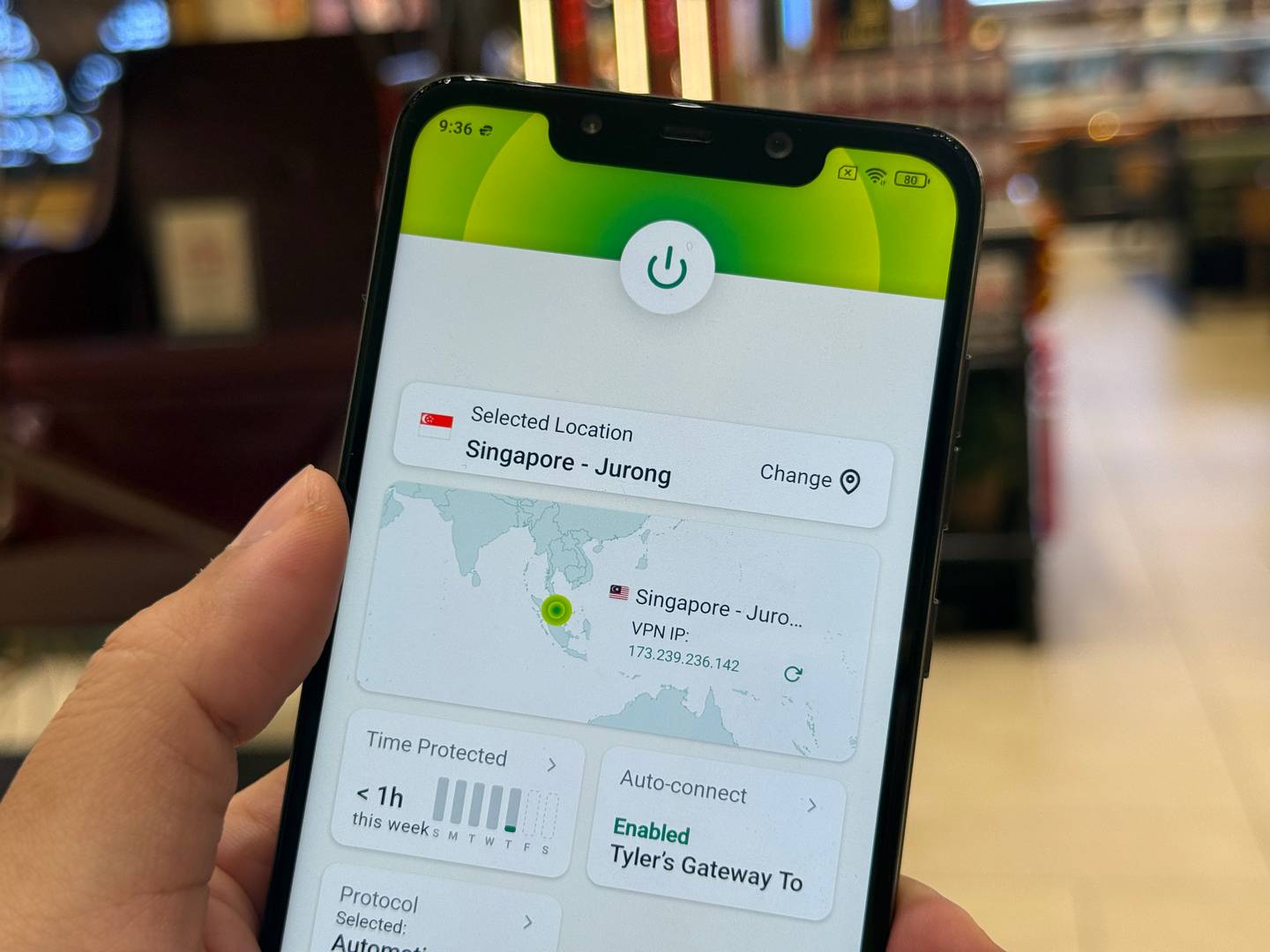
If you’ve been thinking about getting a VPN for your Android phone but keep putting it off because it sounds complicated, you’re not alone. A lot of people assume VPNs are something only IT professionals mess around with. But using ExpressVPN on Android ($2.44/month) is genuinely one of the easier apps you’ll set up today. It takes a few minutes, and once it’s running, you barely have to think about it.
Here’s everything you need to know, from installing the app to getting the most out of it.
How to Set Up ExpressVPN on Android

Before anything, you’ll need an active ExpressVPN subscription. Head to expressvpn.com and sign up if you haven’t already. The app supports Android 7.0 and above, so it’ll run on pretty much any phone released in the last several years.
- Open the Google Play Store and search for “ExpressVPN.” Tap Install. If the Play Store isn’t available in your region, grab the APK directly from ExpressVPN’s website. Just make sure it’s the official site, not a third-party source.
- Open the app and tap Sign In. Enter the email and password tied to your account. If you bought your subscription through the Play Store, tap “Restore your Play Store subscription” instead. The app will ask for permission to set up a VPN connection. Tap OK.
- Tap the power button on the home screen. ExpressVPN will connect you to a “Smart Location,” the fastest available server based on your network. To pick a specific country, tap the location flag and browse the full list.
- Press and hold an empty spot on your home screen, tap Widgets, find ExpressVPN, and drag it where you want it. This is an optional step, but it makes accessing it easier. You will be able to connect to the VPN with a single tap without ever opening the app.
Security Features Worth Knowing About
Getting connected is the easy part. The more interesting stuff is what’s happening under the hood while you’re browsing.
Lightway Protocol

ExpressVPN built its own VPN protocol called Lightway. It’s designed to connect faster, use less battery, and stay connected even when you switch between Wi-Fi and mobile data. So if you’re walking and your phone drops from Wi-Fi to LTE, your VPN connection doesn’t drop too. The protocol has been independently audited for security, which is worth noting given how many VPN companies make big claims without any outside verification.
You can find the protocol settings under the hamburger menu in the top corner. The “Automatic” option works fine for most people since the app picks the best protocol for your current network.
Network Lock (Kill Switch)

If your VPN connection ever drops unexpectedly, Network Lock cuts off all internet traffic until the VPN reconnects. Nothing slips through unencrypted. It’s turned on by default on Android, which is the right call.
Split Tunneling

This one is genuinely useful. Split tunneling lets you choose which apps go through the VPN and which ones use your regular connection. So you could route your banking app and browser through ExpressVPN while letting your streaming apps run on your regular network. Or flip it and only protect specific apps. Go to Settings, then tap Split Tunneling to set it up.
Threat Manager
Threat Manager blocks trackers, malicious sites, and known ad-serving domains. It’s not a full ad blocker, but it cuts down on the amount of data flowing to third-party trackers while you browse. You’ll find it under Add-ons in the app.
No-Logs Policy
ExpressVPN has a strict no-logs policy that’s been audited by third parties. They don’t record what sites you visit, what you download, or when you connected. This has actually been tested in real-world circumstances, not just stated in a privacy policy document.
Performance: What to Actually Expect

Speed is one of the first things people worry about with VPNs. To give you real numbers, we ran tests using Fast.com, which tends to give more neutral readings than some of the browser-based tools out there.
Without a VPN connected, we were sitting at 650Mbps down and 260Mbps up. Connected to ExpressVPN’s recommended “fastest” servers, that came in at 430Mbps down and 270Mbps up. A noticeable drop on downloads, but upload speeds were basically the same.
Upload speed matters more than people realize. If you’re on a video call, sending large files, or doing anything where your device is pushing data out rather than pulling it in, upload is what you’re actually depending on. Holding 270Mbps upload through a VPN connection is solid.
For local server testing, Fast.com struggled to get a stable reading, which isn’t unusual since third-party speed test sites can sometimes conflict with VPN routing. Running the built-in speed test inside the ExpressVPN app gave us 429Mbps down and 302Mbps up on local servers. That’s actually a better upload result than the “fastest” server recommendation. Worth running both tests to see what works best on your network.
To find it, go to Settings, scroll down to Speed Test, and tap Run Test. It shows latency, download, and upload across nearby server options side by side.
Real-World Uses That Actually Matter

Traveling abroad
This is probably the most common reason people reach for their VPN. Connecting to a server back home lets you keep access to streaming libraries, banking apps, and services that might be blocked or restricted in certain countries. If you’re traveling for work and need to access your company’s internal tools, a VPN is often a requirement anyway. ExpressVPN has servers in over 105 countries, so finding a useful location isn’t usually a problem.
Public Wi-Fi
Airport lounges, hotel lobbies, coffee shops. These are all networks where your data could theoretically be intercepted by someone else on the same connection. Turning on ExpressVPN before connecting to public Wi-Fi means your traffic is encrypted before it ever hits that network. You can set ExpressVPN to auto-connect whenever you join an unsecured Wi-Fi network, which takes the decision-making out of the equation entirely. Find it under General in the settings.
Streaming
If you’ve ever run into a “not available in your region” message, a VPN fixes that. Connect to a server in the country where the content is available and you’re in. ExpressVPN works reliably with Netflix, Hulu, BBC iPlayer, and a number of other services. Keep in mind that streaming libraries vary by region, and availability can change, but ExpressVPN actively maintains its server list to stay ahead of geo-blocks.
Everyday Privacy
If you’re curious about what a VPN actually protects you from on a day-to-day basis, it mainly prevents your internet provider from seeing what sites you visit and stops advertisers from building a profile of your browsing habits based on your IP address. If you want to dig deeper into how VPNs protect your phone, this overview of smartphone VPN use cases breaks it down well.
A Few Smart Tips Before You Go

- Turn on auto-connect for untrusted networks. You can set it under General so the VPN kicks in automatically on public Wi-Fi.
- Use the widget. It’s a two-tap connect from your home screen instead of hunting for the app.
- Run the speed test before streaming. If you’re on a slow connection, picking the fastest server manually makes a real difference.
- Try the Threat Manager. It’s free with your subscription and cuts down on background tracking without any setup beyond turning it on.
- Connect on up to eight devices. One subscription covers your phone, tablet, and anything else you want protected.
If you’ve been meaning to try a full-featured VPN but weren’t sure where to start, our in-depth ExpressVPN review has more detail on how it stacks up overall. And if cost is a concern, it’s worth checking out how free VPNs for Android compare before committing to a paid plan.
Right now, ExpressVPN is offering an amazing discounted offer of $2.44/month and a 30-day money-back guarantee, so there’s no real risk in giving it a try.