
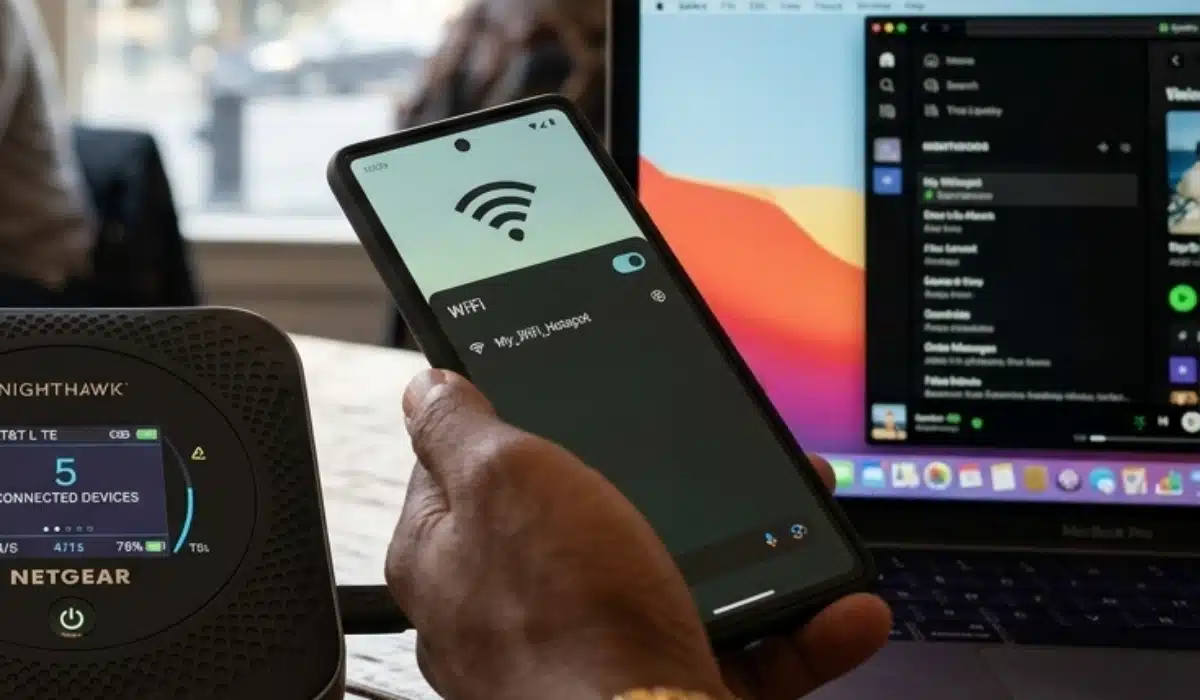
To turn on your mobile hotspot on iPhone, go to Settings → Personal Hotspot and toggle on Allow Others to Join. On Android, go to Settings → Network & internet → Hotspot & tethering and toggle on Wi-Fi hotspot. Other devices can then find your phone as a Wi-Fi network and connect using your hotspot password.
Below are the full step-by-step instructions for both iPhone (iOS 26) and Android 16, including how to customize your hotspot name and password, connect devices via Wi-Fi, Bluetooth, and USB, and what to do if your hotspot is not working.

What Is a Mobile Hotspot?
A mobile hotspot turns your phone into a portable Wi-Fi router — sharing your cellular data connection with other devices like laptops, tablets, or another phone. It is sometimes called tethering, and it is one of the most useful features on any smartphone.
Before you turn it on, check two things:
- Your carrier plan includes hotspot. Most unlimited plans from Verizon, AT&T, and T-Mobile include mobile hotspot, but the amount of full-speed hotspot data varies by tier (typically 15GB–100GB per month). Some basic or prepaid plans do not include tethering at all. Check your plan details if you are unsure.
- Mobile data is turned on. Your hotspot uses your phone’s cellular connection, so mobile data must be active. A hotspot cannot share a Wi-Fi connection — only cellular data.
How to Turn On Personal Hotspot on iPhone (iOS 26)
Apple calls the feature Personal Hotspot on iPhone.
Method 1: Via Settings (Recommended for First-Time Setup)
- Open the Settings app.
- Tap Personal Hotspot.
- If this is your first time, tap Wi-Fi Password to set a password for your hotspot. Choose something at least 8 characters long — iOS requires it.
- Toggle on Allow Others to Join.
- A banner appears at the top of your screen indicating Personal Hotspot is active.
Your hotspot name is your iPhone’s device name (e.g., “John’s iPhone”). To change it, go to Settings → General → About → Name.
Method 2: Via Control Center (Fastest — Hotspot Already Set Up)
- Swipe down from the top-right corner of your screen to open Control Center.
- Press and hold the connectivity cluster (the block containing Wi-Fi, Bluetooth, and Airplane Mode icons).
- Tap the Personal Hotspot icon.
- The icon turns green — your hotspot is on.
Connecting Another Device to Your iPhone Hotspot
Via Wi-Fi (most common): On the device you want to connect, open Wi-Fi settings, find your iPhone’s name in the list, tap it, enter your hotspot password, and connect.
Via Bluetooth: Go to Settings → Personal Hotspot and make sure it is on. Pair your device to your iPhone via Bluetooth as you would any Bluetooth device. Once paired and connected, the other device shares your iPhone’s data connection automatically.
Via USB: Connect your iPhone to a Mac or PC using a Lightning or USB-C cable. If prompted on your iPhone, tap Trust This Computer. Your computer should detect iPhone USB as a network interface and connect automatically. On Mac, this appears in System Settings → Network → iPhone USB.
How to Change Your Hotspot Password on iPhone
- Go to Settings → Personal Hotspot.
- Tap Wi-Fi Password.
- Delete the current password and enter a new one (minimum 8 characters, ASCII characters only).
- Tap Done.
How to Turn On Mobile Hotspot on Android 16
On Stock Android — Google Pixel and Most Android Phones
These steps are confirmed for Android 16 on Google Pixel devices.
- Open the Settings app.
- Tap Network & internet.
- Tap Hotspot & tethering.
- Tap Wi-Fi hotspot.
- Toggle on Use Wi-Fi hotspot.
- Your hotspot name and password appear on this screen. Note them down or share them with the device you want to connect.
Quick Settings shortcut (fastest method):
- Swipe down from the top of your screen to open the Quick Settings panel.
- Tap the Hotspot tile.
- If you do not see a Hotspot tile, tap Edit at the bottom of the Quick Settings panel and drag the Hotspot tile into your active tiles.
On Samsung Galaxy Phones
Samsung’s hotspot is found under Connections rather than Network & internet.
- Open the Settings app.
- Tap Connections.
- Tap Mobile Hotspot and Tethering.
- Tap the toggle next to Mobile Hotspot to turn it on.
- Tap Mobile Hotspot (the text, not just the toggle) to open its settings — here you can see and change the network name and password.
Samsung Auto Hotspot: Samsung Galaxy phones have an additional feature called Auto Hotspot, which lets connected Samsung family members (Galaxy phones signed into the same Samsung account) join your hotspot automatically without needing a password. To enable it: Settings → Connections → Mobile Hotspot and Tethering → Mobile Hotspot → Auto Hotspot.
Customise Your Hotspot Name and Password on Android
- Go to Settings → Network & internet → Hotspot & tethering → Wi-Fi hotspot (stock Android) or Settings → Connections → Mobile Hotspot and Tethering → Mobile Hotspot (Samsung).
- Tap Hotspot name to change the network name your devices will see.
- Tap Hotspot password to change the password.
- Choose WPA3 security if available — it is more secure than WPA2. Use WPA2 if some of your devices cannot connect with WPA3.
USB and Bluetooth Tethering on Android 16
USB tethering:
- Connect your Android phone to your computer with a USB cable.
- Go to Settings → Network & internet → Hotspot & tethering.
- Toggle on USB tethering. Your computer will detect and use your phone’s data connection.
Bluetooth tethering:
- Pair your phone and the device you want to connect via Bluetooth.
- Go to Settings → Network & internet → Hotspot & tethering.
- Toggle on Bluetooth tethering. On the connected device, tap your phone’s name in Bluetooth settings and select Use for Internet access. Note: Bluetooth tethering is significantly slower than Wi-Fi hotspot and is best used only when Wi-Fi is not an option.
How to See Which Devices Are Connected to Your Hotspot
iPhone: While Personal Hotspot is active, return to Settings → Personal Hotspot. Connected devices are listed below the toggle.
Android (stock): Go to Settings → Network & internet → Hotspot & tethering → Wi-Fi hotspot. Connected devices appear under Connected devices.
Samsung: Go to Settings → Connections → Mobile Hotspot and Tethering → Mobile Hotspot. Connected devices are listed on the screen.
Tips for Better Hotspot Performance
Use the 5 GHz band when possible. Both iPhone and Android allow you to choose between 2.4 GHz and 5 GHz for your hotspot. The 5 GHz band is significantly faster but has shorter range. If the connecting device is within a few feet, choose 5 GHz. For longer distances or when connecting through walls, use 2.4 GHz. On iPhone this is the Maximize Compatibility toggle — turning it on forces 2.4 GHz for broader device compatibility; turning it off allows 5 GHz.
Turn off the hotspot when not in use. A live hotspot drains your battery quickly and continues consuming data in the background. Both platforms offer an auto-off timer when no devices are connected — enable it to save battery on longer sessions.
Monitor your hotspot data. Hotspot data typically comes from your plan’s dedicated tethering allowance, which is separate from (and usually smaller than) your total data. Check your carrier’s app — My Verizon, myAT&T, or T-Mobile — to see how much hotspot data you have remaining in your billing cycle.
Keep your phone plugged in during extended hotspot sessions. Running a hotspot is one of the most battery-intensive tasks a phone can do. For desk or car use, connect to a charger while the hotspot is active.
What to Do If Your Hotspot Is Not Working
Personal Hotspot is greyed out on iPhone (iOS 26): This is a known issue affecting some iPhones after iOS 26 updates. Try these steps in order:
- Toggle Cellular Data off and back on: Settings → Cellular → Cellular Data.
- Restart your iPhone.
- Check for a carrier settings update: Settings → General → About — wait 30 seconds; if an update is available, a prompt appears.
- Reset network settings: Settings → General → Transfer or Reset iPhone → Reset → Reset Network Settings. Note this also removes all saved Wi-Fi passwords.
- If still greyed out, contact your carrier to confirm hotspot is provisioned on your account.
Hotspot is on but other devices cannot find it:
- Keep both devices close together — within 10–15 feet.
- On iPhone, ensure Allow Others to Join is toggled on.
- On Android, confirm the hotspot name does not contain unusual characters that may prevent detection.
- Toggle the hotspot off, wait 10 seconds, and turn it back on.
Devices connect but have no internet:
- Confirm mobile data is turned on on the phone providing the hotspot.
- Toggle mobile data off and on to refresh the cellular connection.
- Check that your carrier plan includes hotspot data and that you have not exhausted your tethering allowance for the month.
Related Articles
Steps verified on iOS 26 and Android 16 (March 2026). Carrier hotspot allowances and plan details vary — check your carrier’s website or app for current plan information. Menu labels may vary slightly depending on your device model and software version.
Disclosure: When you purchase through links on our site, we may earn an affiliate commission.