

Microsoft Outlook is one of the most widely used email correspondence and communication tool in the world, with millions of users relying on its features daily.
One powerful aspect of Outlook is its extensibility through add-ins, which allow developers to reinforce its functionality and integrate with other services.
In this guide, we will explore the Outlook extension types, the benefits of using them, and provide a step-by-step instruction on how to develop Outlook add-ins.
Definition and Purpose
Outlook add-ins are software or programs that extend the functionality of Microsoft Outlook. They allow users to access additional features, services, or content directly within the Outlook interface.
The main idea behind extensions is to make your work easier, help you get more done, and give you a personalized experience that fits your needs.
Types of Outlook Extensions
Outlook enhancements come in different types, each made for specific missions. Let’s go over some of them:
Task Pane Add-ins
Task pane extensions stand for extra windows inside Outlook that give you additional tools and features without messing up your main Outlook tasks. The best part of pane extensions is that they allow you to perform supplementary duties while managing emails, calendars, or other Outlook functionality.
Examples of task pane modules:
- Email tracking and analytics tools
- Social media integrations
- Project management tools for managing tasks and projects
- CRM (Customer Relationship Management) extensions
Content Extras
Content extras let users work with outside sources right in their emails or calendar events in Outlook. These extensions can jazz up the content you create by putting in interactive elements, pictures, or up-to-date info from other places.
Examples of content enhancements:
- Maps and location services
- Weather updates
- Package tracking
- Stock market updates
Action Extensions
Action components help users make specific chores right from Outlook. It can be translating emails, updating CRM records, or starting processes with other services without leaving Outlook. On top of that, action add-ons greatly speed up the daily routine because you don’t have to switch between different apps or screens.
Examples of action modules:
- Translation tools
- Expense tracking instruments
- Email automation tools
Benefits of Custom Outlook Plugin Development
The modern software market offers many ready-made solutions that are easy to use and quick to set up. However, compared to custom-made options, these off-the-shelf solutions have some downsides.
One big drawback is that off-the-shelf solutions don’t offer much customization. They’re made for a wide range of users and might not be flexible enough to fit exactly what a particular organization needs.
On the other hand, custom-built add-ins give users a lot of flexibility. They can adjust their Outlook experience to fit their exact preferences, whether that means connecting with CRM systems, project management tools, or other apps that help them work better.
Plus, custom Outlook add-in development makes it easier for an organization to grow. If needs change over time, custom extensions can be updated and expanded without much ado.

How Outlook Add-ins Improve Daily Workflows
Once implemented, Outlook add-ins change daily workflows not through abstract benefits, but through specific actions that become available directly within the interface. Instead of switching between multiple systems, users can perform key tasks inside Outlook — the place where a significant part of business communication already happens.
Below are several common scenarios that illustrate how this works in practice.
Sales and CRM
In a typical workflow, sales teams need to open a CRM system separately, search for a contact by email, and manually log communication.
With an add-in, customer data is automatically displayed when an email is opened. A side panel can show contact details, interaction history, and deal status. From the same interface, new activities can be logged, or records can be updated.
As a result, working with customer data becomes faster and more consistent.
Customer Support
Handling incoming requests often requires switching between email and a ticketing system, which slows down response times and complicates tracking.
With an add-in, emails can be converted into tickets directly within Outlook. The interface can display request history and current status, while replies sent from Outlook are automatically synced with the support system.
This helps streamline request handling and maintain better visibility across interactions.
Project and Task Management
Tasks frequently originate from emails but need to be manually transferred into project management tools.

With an add-in, tasks can be created directly from an email. It becomes possible to assign them to a project, set deadlines, and link related communication — all without leaving Outlook.
This reduces the risk of missed tasks and simplifies task tracking.
Finance and Operational Processes
Many approval workflows — such as invoices, requests, and internal documents — are handled via email.
Add-ins allow these processes to be managed directly within Outlook. Users can review details, approve or reject requests, and trigger workflows through embedded actions, with all updates automatically reflected in external systems.
This makes approval processes faster and easier to control.
Step-by-Step Guide to Outlook Add-in Development
Building an Outlook add-in is a practical process that combines several things: setting up the project, designing how it looks, and connecting it to external systems.
Unlike regular application development, you also need to consider how Outlook works, what Office.js API allows you to do, and how people actually use email and calendars in their daily work.
Step 1. Creating an Add-in Project (manifest + Office.js)
Everything starts with setting up the basic structure of the add-in. The core element here is the manifest file (XML). It defines how the add-in appears in Outlook, what actions it can perform, and what permissions it needs.
Alongside this, the Office.js library is connected. It gives access to Outlook data such as emails, attachments, and calendar events, and allows the add-in to interact with the interface.
Step 2. Determining the Add-in Type and Use Case
At this stage, the add-in format is determined based on the business objective and user scenario. In most cases, a task pane is used, which allows a fully-fledged interface to be integrated directly into Outlook.
In simpler scenarios, ribbon buttons (commands) are sufficient, whilst for process automation, event-based add-ins are used, which trigger on specific actions, for example, when opening an email.
This choice has a direct impact on the user experience and the depth of integration.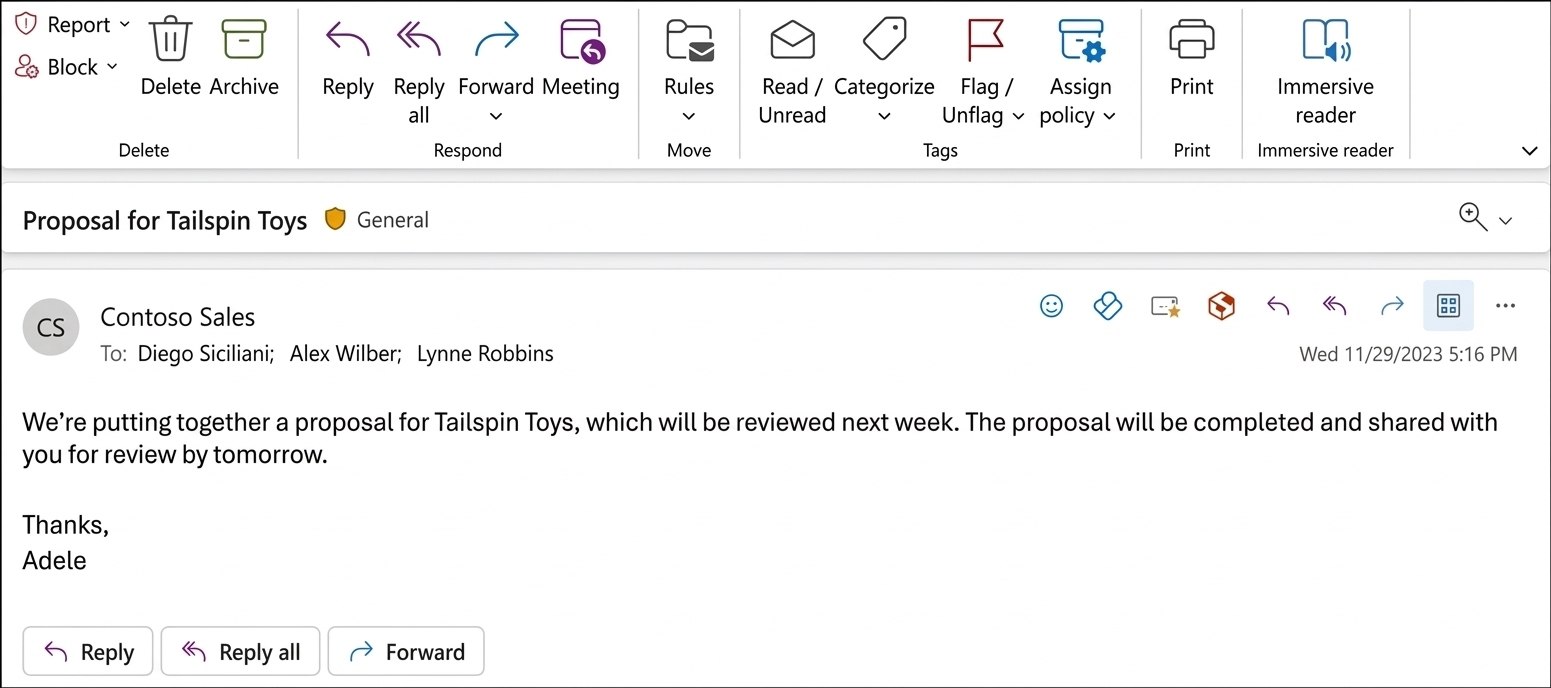
Add-in in the Outlook interface
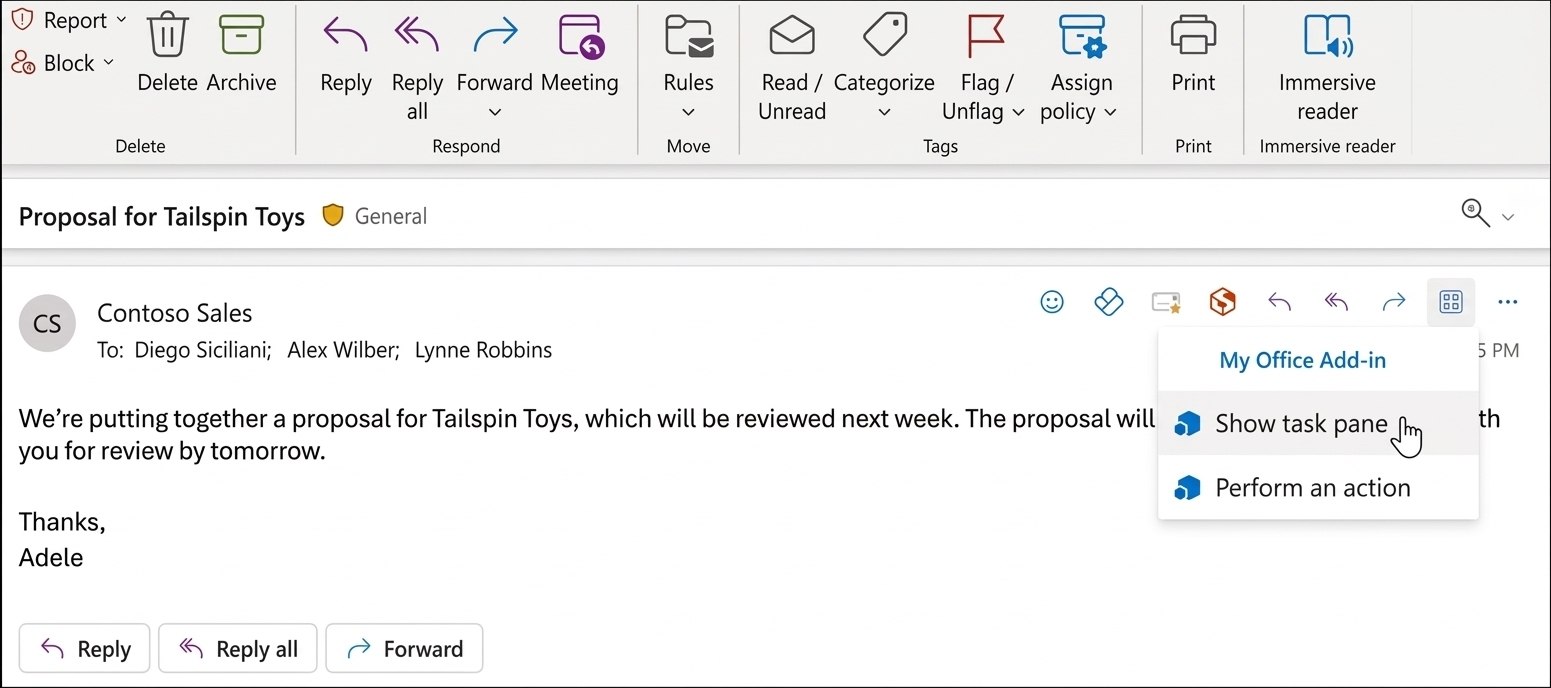
Add-in actions menu
Step 3. Designing the User Interface
Once the format is clear, you move on to the interface. It’s usually built with HTML, CSS, and JavaScript, and sometimes with frameworks like React or Angular if the logic is more complex.
The interface runs inside the task pane, so space is limited. That’s why it needs to be simple and easy to navigate. A user should be able to quickly find what they need — whether it’s customer data, editable fields, or action buttons.
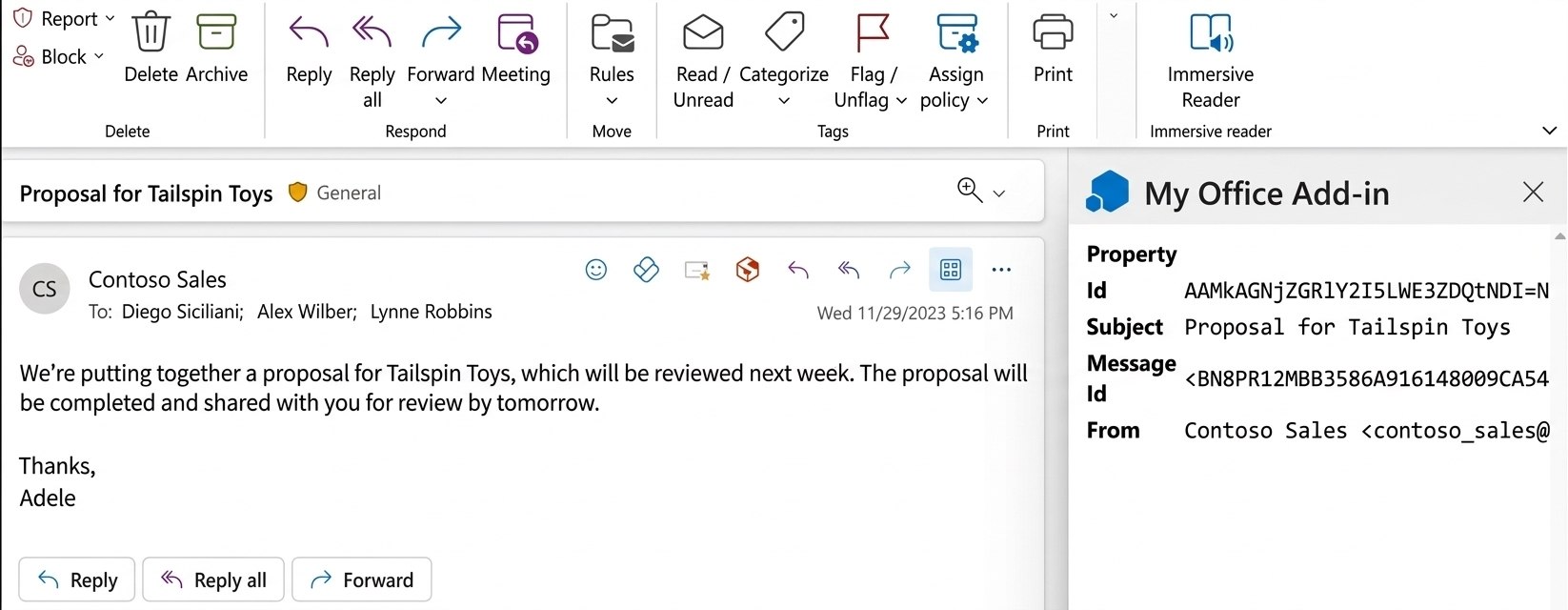
Add-in pane displaying email details
Step 4. Integration with External APIs and Services
What gives an add-in practical value is its integration with other applications. Without that layer, it is hard to treat it as more than a front end.
Via the API, the add-in can retrieve data from CRM, ERP, or internal services, process it, and send updates. For example, the add-in can automatically fetch customer information based on the sender’s email address or allow records to be created in the system without leaving Outlook.
This significantly reduces the time spent on routine tasks and minimises errors.
Step 5. Testing in Outlook (Web and Desktop)
Once the core logic has been implemented, the add-in undergoes testing in various Outlook environments. Particular attention is paid to its performance in Outlook Web and desktop versions (Windows and macOS), as behaviour may differ.
Testing covers:
- accurate display of the interface
- stability of API requests
- handling of various user scenarios
- security of data transmission and storage
- identification and mitigation of system vulnerabilities
Step 6. Deployment and Distribution
The final stage involves deploying the add-in and granting users access. In an enterprise environment, it is usually published via the Microsoft 365 Admin Centre, which allows the add-in to be enabled centrally without the need for manual installation.
If the solution is aimed at a wider audience, it can be published on AppSource.
Step 7. Support and Development
Work on the add-in does not end once it has been launched. As business processes evolve, the add-in is refined: new features are added, the user interface is optimised, and integrations are expanded.
This approach ensures that the solution remains up to date and gradually increases its value for users.
Result
A well-designed Outlook add-in becomes an integral part of your daily workflow, allowing you to work with data and services directly within the Outlook interface. This reduces the need to switch between systems, speeds up task completion, and makes interacting with corporate tools more convenient and efficient.
Our Process of Outlook Plugin Development
While the process outlined above gives a clear understanding of how an Outlook add-in is built, implementing it in practice often requires deeper technical expertise, familiarity with the Outlook ecosystem, and experience with real-world integration scenarios.

For teams that prefer to focus on business priorities rather than technical implementation, working with an experienced development partner can significantly simplify the process and reduce risks.
At SCAND, Outlook add-in development follows a structured approach that combines business analysis, UX design, and robust engineering practices. This allows solutions to be aligned not only with technical requirements, but also with real user workflows. Here’s how we do it:
Requirement Analysis
First, we start by fully understanding what the requirements for your Outlook solution are. This means figuring out exactly what tasks it should be able to perform, how users will interact with it, and how it should work with other tools.
Design Phase
During this step, our design team makes sketches and mockups to show how everything will be laid out and how people will engage with it.
Development Phase
Our development team builds the extension functionality according to the design and technical conditions. We follow best practices and coding guidelines to make sure your application can grow as needed and run as expected.
Throughout the development process, we regularly check and test our code to catch and fix any problems early on.
QA Testing
Ensuring our product meets high standards is a crucial part of our development method. This way, we exhaustively test it to guarantee it works well, is compatible with different versions of Outlook on different devices and platforms, and follows all the rules and recommendations set by Microsoft.
Deployment and Distribution
Once the add-on has been thoroughly tested and approved, it’s time to release it. We also create Outlook add-in guides and support materials to help you install and use the add-in properly.
Maintenance and Updates
Even after we’ve launched the enhancement, we keep a close eye on how well it’s doing. If users have any problems or suggestions, we act on them quickly and release updates with improvements and fixes. Our goal is to keep making the software better even after it’s been deployed.
Our Successful Outlook Add-in Implementations
An example of a popular Outlook add-in is Outlook4Gmail. The software leverages Google APIs (including People, Calendar, and Tasks) to ensure high-performance synchronization between Google Workspace and Microsoft Outlook.
In addition, Outlook4Gmail offers features like scheduled syncing and advanced contact organization, making it a hit among users who want all their contacts and calendar stuff in one place.
Related Cases
Secure Outlook Attachments Tool
Outlook Validation Add-in Development For Secure Email Sharing
Conclusion
Outlook add-ins offer a powerful way to extend the functionality of Microsoft Outlook and enhance productivity, collaboration, and customization.
While there are lots of solutions you can use right away, making your own can be a better option for many reasons.
If you turn to our development team, you can get a product that not only meets the functional requirements but also exceeds user expectations.
Contact SCAND today and request custom add-in development tailored to your unique business needs. Our experienced team of Outlook developers is ready to turn your ideas into reality.