
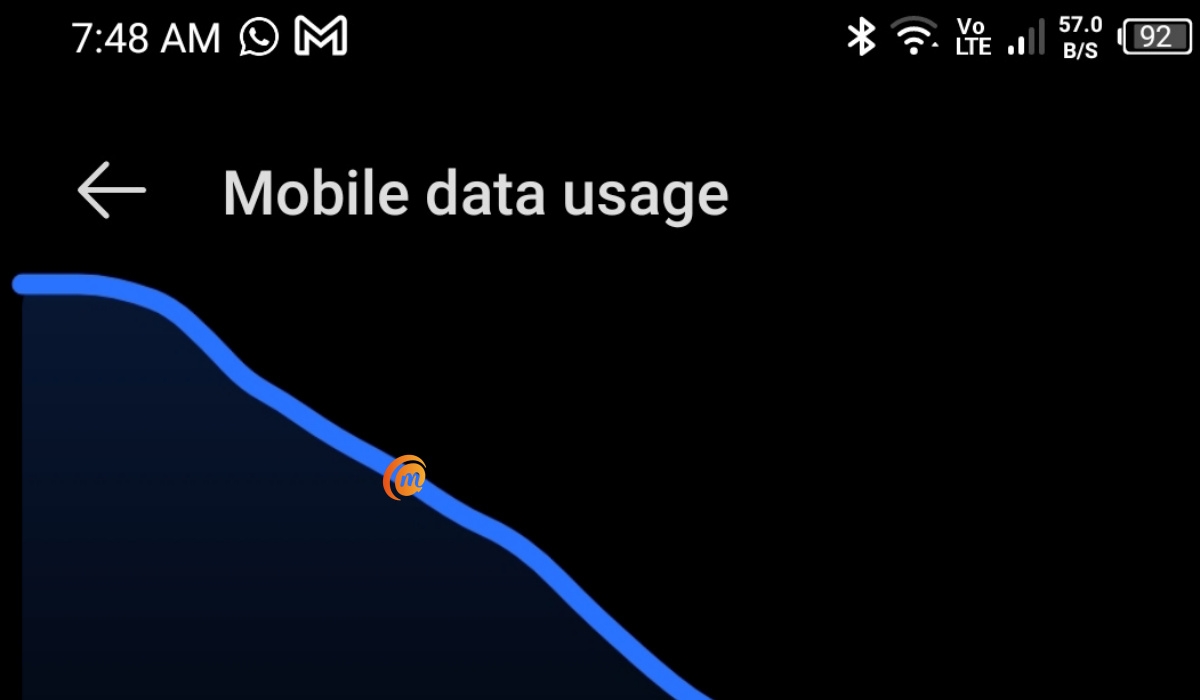
To check your data usage on iPhone, go to Settings → Cellular and look at the Current Period figure near the top. On Android, go to Settings → Network & internet → Internet, tap the settings icon next to your carrier, and your total data usage appears at the top of the screen. Both platforms also show a breakdown of data used by each individual app.
Below are the full steps for iPhone (iOS 26) and Android 16, including how to set data warnings, reset your usage counter, and check your remaining allowance directly through your carrier.
Why Checking Your Data Usage Matters
Most US phone plans — including those from Verizon, AT&T, and T-Mobile — include unlimited data, but “unlimited” often comes with a catch: once you use a certain amount of high-speed data (usually 20GB–100GB depending on your tier), your carrier can slow your connection during busy periods. If you are on a limited plan, or if you travel internationally and are paying per gigabyte, knowing where your data is going can save you a significant amount of money.
Both iPhone and Android track your mobile data usage automatically. The key limitation to understand on both platforms: the built-in counter does not reset automatically each month on iPhone, and needs to be aligned with your billing cycle manually. On Android 16, you can configure a billing cycle date so the counter resets in sync with your plan.
How to Check Data Usage on iPhone (iOS 26)
Check Your Total Data Usage
- Open the Settings app.
- Tap Cellular — in some regions this may be labelled Mobile Data or Mobile Service.
- Scroll down slightly to the Cellular Data section.
- The Current Period figure shows your total mobile data used since the counter was last reset.
- If you have been roaming, Current Period Roaming appears directly below — that figure is separate and important for avoiding travel charges.
See Which Apps Are Using the Most Data
On the same Cellular settings screen, scroll down past the Current Period totals. You will see a list of every app installed on your iPhone, sorted from highest to lowest data use. Each app shows the amount of mobile data it has consumed during the current period.
This is where you will typically find the usual culprits — streaming apps like Netflix, YouTube, and Spotify tend to top the list. If an app is using more data than you would expect, you can tap the toggle next to its name to cut off its cellular access entirely. It will then only work on Wi-Fi.
System Services data: Scroll to the bottom of the app list and tap System Services to see how much data background system tasks have consumed — iCloud sync, Siri, push notifications, software updates, and more. If iCloud or software updates are eating your data, this is where you will see it.
Reset the Data Counter
The Current Period counter on iPhone does not reset on a set schedule — it only resets when you manually tell it to. For accurate monthly tracking, reset it on the same date your carrier’s billing cycle starts each month.
- Scroll to the very bottom of the Cellular settings page.
- Tap Reset Statistics.
- Confirm by tapping Reset Statistics again.
Tip: Set a recurring monthly reminder in your calendar to reset your statistics on your billing cycle start date. Without this habit, your Current Period figure accumulates indefinitely and becomes useless for tracking monthly usage.
Check the Most Accurate Source: Your Carrier’s App
The built-in iPhone counter measures all data traffic processed by the device. Your carrier measures it slightly differently — and it is the carrier’s count that determines your bill. For the most accurate picture of your remaining allowance, use your carrier’s app:
- Verizon: My Verizon app
- AT&T: myAT&T app
- T-Mobile: T-Mobile app
- Dial codes: Many carriers support shortcode dials — T-Mobile users can dial #932# for a data usage text; AT&T users can try *3282# (DATA).
How to Check Data Usage on Android 16
On Stock Android — Google Pixel and Most Android Phones
These steps are confirmed for Android’s official documentation and work on Pixel phones and most stock Android devices.
- Open the Settings app.
- Tap Network & internet.
- Tap Internet.
- Tap the settings gear icon next to your mobile carrier’s name.
- Your total data usage for the current cycle appears at the top of the screen.
- Tap App data usage to see a graph and a breakdown of data used by each app.
- Use the down arrow at the top to select a specific time period — day, week, or a custom date range.
On Samsung Galaxy Phones
Samsung uses One UI’s Connections menu instead of Network & internet.
- Open Settings.
- Tap Connections.
- Tap Data usage.
- Tap Mobile data usage.
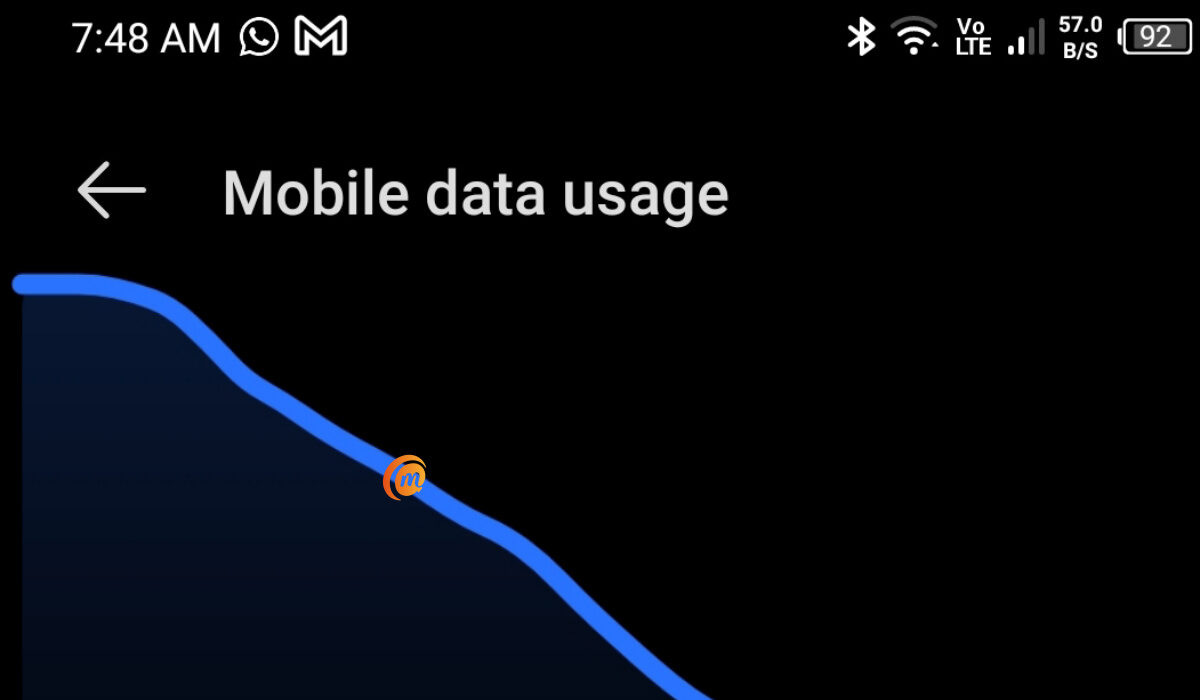
- A usage graph appears showing your data consumption across the current billing cycle, with a breakdown by app below.
- To also check Wi-Fi data usage: go back to Data usage and tap Wi-Fi data usage.
Set Your Billing Cycle Start Date (Android 16)
Unlike iPhone, Android lets you configure a billing cycle date so the usage counter automatically resets each month in sync with your plan.
On stock Android:
- Go to Settings → Network & internet → Internet.
- Tap the settings gear next to your carrier.
- Tap Data warning & limit.
- Tap Mobile data usage cycle and set the start date to match your carrier’s billing date.
On Samsung Galaxy:
- Go to Settings → Connections → Data usage → Mobile data usage.
- Tap the gear icon at the top right.
- Tap Billing cycle and data warning.
- Set your billing cycle start date.
Once configured, Android resets the counter automatically each month — no manual reset needed.
Set a Data Warning or Limit (Android 16)
Android 16 lets you set a warning notification when you approach your data limit, and optionally a hard cutoff that automatically turns off mobile data when you hit a set amount.
On stock Android:
- Go to Settings → Network & internet → Internet.
- Tap the gear icon next to your carrier.
- Tap Data warning & limit.
- Toggle on Set data warning and enter a threshold (e.g., 40GB if your plan is 50GB).
- Optionally, toggle on Set data limit and enter the maximum — your phone cuts off mobile data automatically when it reaches this figure.
On Samsung:
- Go to Settings → Connections → Data usage → Mobile data usage.
- Tap the gear icon.
- Tap Billing cycle and data warning and configure your warning threshold and limit.
Check Usage Through Your Carrier’s App
As with iPhone, your carrier’s app gives you the most accurate picture of your remaining data allowance for the billing cycle. The same carrier apps apply: My Verizon, myAT&T, and T-Mobile apps are all available on the Google Play Store and show real-time data consumption tied directly to your plan.
Tips for Reducing Data Usage
Once you know which apps are eating your data, here are the most effective ways to cut consumption:
Turn off cellular access for specific apps. On iPhone, go to Settings → Cellular and toggle off any app you only want to use on Wi-Fi. On Android, go to Settings → Apps, select the app, tap Mobile data & Wi-Fi, and disable Background data.
Enable Low Data Mode.
- iPhone (iOS 26): Settings → Cellular → Cellular Data Options → Low Data Mode. This pauses automatic updates, background syncing, and reduces data use across apps.
- Android 16: Settings → Network & internet → Data Saver. This restricts background data for most apps system-wide.
Turn off Wi-Fi Assist on iPhone. Wi-Fi Assist (Settings → Cellular → Wi-Fi Assist) automatically switches to cellular when your Wi-Fi signal is weak. If you are on a limited plan, turning this off prevents unexpected cellular charges when you are near your home router but getting a weak signal.
Reduce video streaming quality. Netflix, YouTube, and Spotify each have in-app data settings. Setting video to standard definition instead of HD can reduce data consumption by 50–80% for streaming sessions.
Check for background app refresh. On iPhone, go to Settings → General → Background App Refresh and turn it off for apps that do not need to update in the background. On Android, this is managed per-app under Settings → Apps → [app name] → Mobile data & Wi-Fi.
Related Articles
Steps verified on iOS 26 and Android 16 (March 2026). Carrier app names and dial codes are correct as of March 2026 but may change — check your carrier’s website for current shortcodes. Menu labels may vary slightly depending on your phone model.
Disclosure: When you purchase through links on our site, we may earn an affiliate commission.