
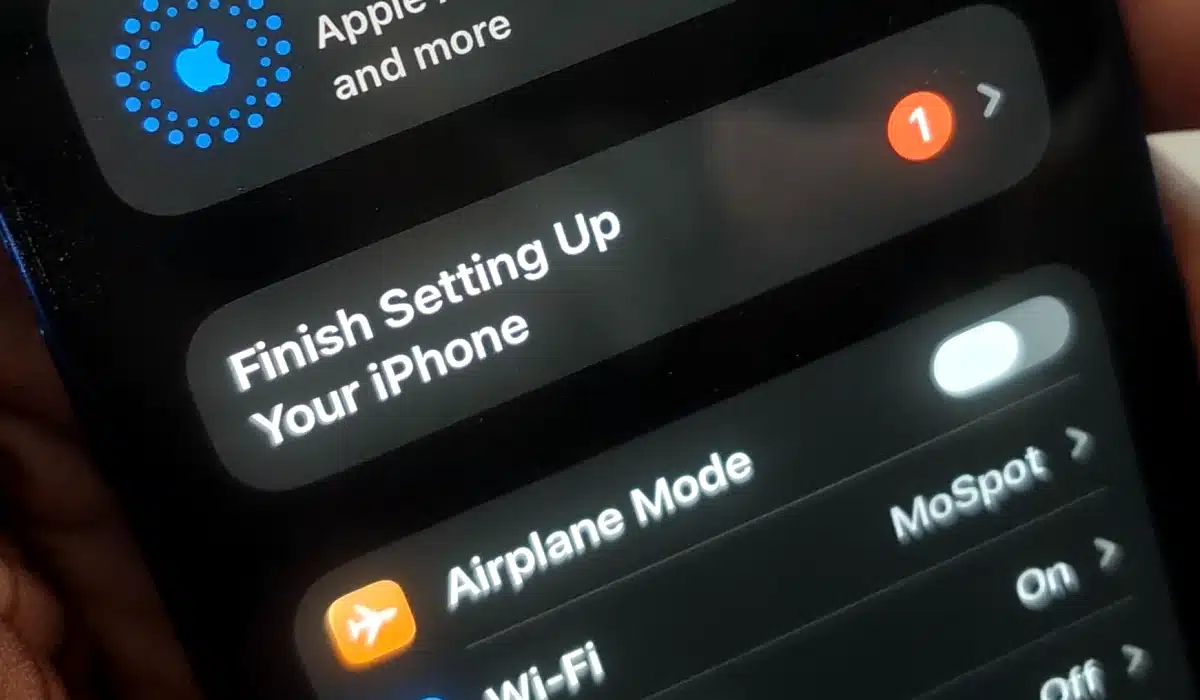
To set up a new iPhone, power it on, connect to Wi-Fi, sign in with your Apple ID, and choose how to restore your data — from an iCloud backup, an old iPhone directly, or as a brand-new device. The full process takes under 30 minutes for most people.
What You Need Before You Start
Gather these before powering on your new iPhone:
- Your Apple ID email and password
- Your Wi-Fi network name and password
- Your old iPhone or your most recent iCloud backup (if transferring data)
- Your old phone’s passcode (needed for Quick Start)
- A charged new iPhone (or keep it plugged in during setup)
Step 1: Power On and Choose Your Language
- Press and hold the Side button (right edge) until the Apple logo appears.
- Swipe up (or press the Home button on older models) when you see “Hello.”
- Select your language and your country or region (United States or Canada).
Step 2: Connect to Wi-Fi
- Select your Wi-Fi network from the list.
- Enter the password and tap Join.
- If you don’t have Wi-Fi available, tap Use Cellular Connection — but Wi-Fi is strongly recommended for a full data restore.

Step 3: Set Up Face ID or Touch ID
- Tap Continue on the Face ID (or Touch ID) screen.
- For Face ID: position your face in the frame and rotate your head in a full circle twice as prompted.
- For Touch ID: press your finger on the Home button repeatedly until the setup completes.
- Create a 6-digit passcode when prompted. This is your fallback if biometrics fail.
Step 4: Transfer Your Data — Choose Your Method
This is the most important decision in the setup process. You have four options:
Option A: Transfer Directly from Your Old iPhone (Quick Start) — Recommended
Best if your old iPhone is nearby and running iOS 16 or later.
- Place your old iPhone next to your new one. A Quick Start prompt will appear automatically on the old device.
- Tap Continue on the old iPhone.
- Hold your old iPhone’s camera over the animated pattern displayed on the new iPhone.
- Enter your old iPhone’s passcode on the new device when prompted.
- Set up Face ID or Touch ID on the new iPhone.
- Choose Transfer from iPhone for a direct wireless transfer, or Download from iCloud to pull data from your latest backup.
- Keep both phones close together and plugged into power. Transfer time varies from 20 minutes to over an hour depending on how much data you have.
Option B: Restore from iCloud Backup
Best if you regularly back up to iCloud or your old phone isn’t available.
- Tap Restore from iCloud Backup on the Apps & Data screen.
- Sign in with your Apple ID.
- Choose the most recent backup from the list (check the date and size).
- Keep connected to Wi-Fi. The restore downloads your settings, contacts, and app data. Apps reinstall in the background over the next hour.
Option C: Transfer from Android (Move to iOS)
Switching from an Android phone? See our full guide: How to Transfer Contacts to a New Phone — the Move to iOS section walks through this in detail.
In brief:
- On your Android phone, download Move to iOS from the Google Play Store.
- On your new iPhone, tap Move Data from Android on the Apps & Data screen.
- Follow the on-screen pairing steps and select what to transfer.
Option D: Set Up as New iPhone
Choose this if you’re not restoring data, or if you’re starting completely fresh.
- Tap Set Up as New iPhone.
- Sign in with your Apple ID (or create one).
- You’ll configure everything manually — contacts, apps, and settings won’t carry over.
Step 5: Sign In with Your Apple ID
If you haven’t signed in already during the restore step:
- Enter your Apple ID (your email address) and password.
- Approve the sign-in on a trusted device if prompted (two-factor authentication).
- Enter the 6-digit verification code sent to your trusted device or phone number.
If you don’t have an Apple ID, tap Forgot password or don’t have an Apple ID? to create one free.
Step 6: Enable or Review iCloud Services
After signing in, iOS will ask which iCloud services to enable:
- iCloud Drive — stores documents and files in the cloud
- Photos — syncs your entire photo library across devices
- iCloud Backup — backs up your iPhone automatically overnight on Wi-Fi
- Find My iPhone — essential; keep this on
- Siri & Dictation — optional voice assistant data
Tap Continue to enable recommended settings, or customize each service individually.
Step 7: Set Up iMessage and FaceTime
- iOS will automatically activate iMessage and FaceTime using your phone number.
- You can also add your Apple ID email as a contact point for both — useful if people message you by email.
- Activation takes a few minutes on cellular.
Step 8: Configure Remaining Settings
iOS will walk you through a few more screens:
- Screen Time — set up parental controls or usage limits, or tap Not Now.
- App Analytics — choose whether to share crash data with Apple and developers.
- True Tone and Display Zoom — True Tone adjusts the screen’s white balance to the environment; Display Zoom makes text and icons larger. Both can be changed later in Settings.
- Siri — activate by saying “Hey Siri” when prompted, or skip and set it up later in Settings.
Step 9: Let Apps Finish Restoring
If you restored from a backup, your home screen may appear with greyed-out app icons. This is normal — apps are reinstalling in the background.
- Keep the iPhone connected to Wi-Fi and power for the first hour.
- Do not interrupt the process by resetting the phone.
- Tap any greyed-out app to prioritize its download.
After Setup: First Things to Do on a New iPhone
Once setup is complete, run through these quickly:
Check your backup restored correctly: Go to Settings > [Your Name] > iCloud > iCloud Backup and confirm the last backup date matches your old phone.
Update to the latest iOS: Go to Settings > General > Software Update. Install any available updates immediately.
Verify your contacts transferred: Open the Contacts app. If contacts are missing, go to Settings > [Your Name] > iCloud and toggle Contacts off and back on.
Set up Apple Pay: Go to Settings > Wallet & Apple Pay > Add Card and follow the prompts to add your debit or credit card.
Adjust notifications: Go to Settings > Notifications and review which apps can send alerts. New iPhones default to showing most notifications; trim them now to avoid noise.
Check storage: Go to Settings > General > iPhone Storage to see how much space your restore used and whether you need to manage anything.
Troubleshooting Common Setup Issues
Quick Start prompt not appearing:
- Make sure both iPhones have Bluetooth and Wi-Fi turned on.
- Unlock your old iPhone and bring it within a few inches of the new one.
- If it still doesn’t appear, restart both phones and try again.
iCloud restore stuck or very slow:
- This is common — large backups (50GB+) can take hours on slower connections.
- Keep the phone plugged in and on Wi-Fi. You can use the phone while it continues restoring in the background.
- If it’s been stuck for more than two hours with no progress, go to Settings > General > Transfer or Reset iPhone > Get Started and try the restore again.
Apple ID two-factor code not arriving:
- Check that your old phone number is still active.
- Go to appleid.apple.com on a computer to manage your trusted devices and phone numbers.
Apps not restoring after iCloud backup:
- Open the App Store, tap your profile picture, and scroll down to see Upcoming Automatic Downloads.
- Tap any paused app to resume.
“Unable to activate iPhone” error:
- This is a carrier activation issue. Try inserting your SIM card firmly, restart the phone, and connect to Wi-Fi.
- If the issue persists, contact your carrier (AT&T, Verizon, T-Mobile, etc.) or Apple Support.
Frequently Asked Questions
How long does it take to set up a new iPhone? Basic setup — language, Wi-Fi, Face ID, Apple ID — takes about 10 minutes. Restoring data from iCloud adds 20–60 minutes or more depending on backup size and Wi-Fi speed. A direct Quick Start transfer from another iPhone is typically faster.
Do I need my old iPhone to set up a new one? No. You can restore from an iCloud backup without your old phone present. If you never backed up, you’ll need to set up as a new iPhone.
Will my apps transfer to the new iPhone? Yes, as long as you restore from a backup or use Quick Start. Apps redownload automatically from the App Store using your Apple ID. In-app purchases and most app data also restore, though some apps (especially banking apps) may ask you to verify your identity again.
Can I set up a new iPhone without Wi-Fi? You can complete basic setup on cellular, but restoring a backup requires Wi-Fi. Setting up as a new iPhone and downloading apps will use cellular data — potentially several gigabytes — without Wi-Fi.
What if I forgot my old iPhone’s passcode? You’ll need to erase and restore the old iPhone to get past a forgotten passcode, which means losing data not backed up to iCloud. If you have an iCloud backup, restore from that instead.
Should I erase my old iPhone after switching? Yes — once you’ve confirmed everything transferred correctly, erase your old iPhone before selling or giving it away. Go to Settings > General > Transfer or Reset iPhone > Erase All Content and Settings. This removes your Apple ID and personal data.
The Bottom Line
Setting up a new iPhone is straightforward: power on, connect to Wi-Fi, sign in with your Apple ID, and restore from your backup or old device. Quick Start is the fastest and most complete method if your old iPhone is available. After setup, update iOS, verify your contacts, and set up Apple Pay before anything else.
Related reading:
Disclosure: When you purchase through links on our site, we may earn an affiliate commission.