

Disclosure: When you purchase through links on our site, we may earn an affiliate commission.
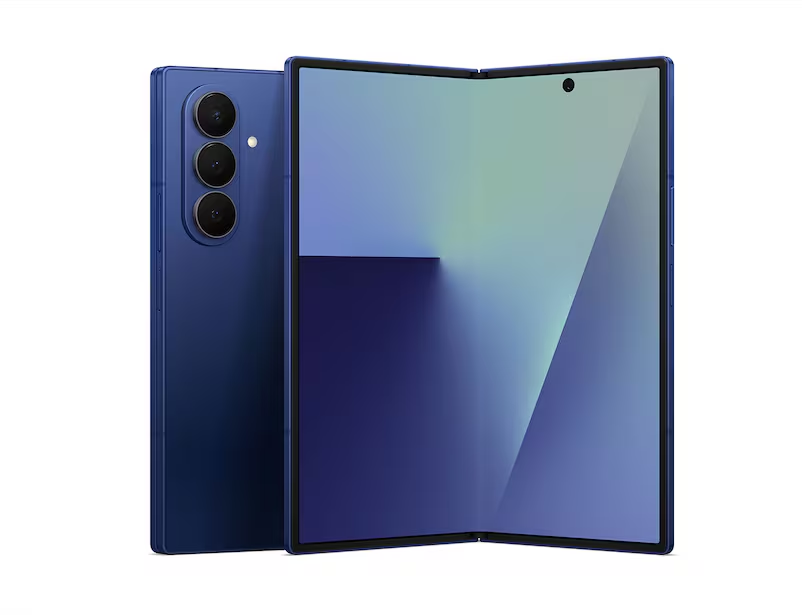
The Samsung Galaxy Z Fold 7 isn’t just about folding in half — it’s about changing the way you actually use your phone. With Flex Mode and the Flex Mode Panel, you can do things that just aren’t possible on a regular smartphone.
Want to jump on a hands-free video call? The Flex Mode Panel has you covered. Need a quick mini laptop setup for typing or multitasking? It’s right there. Even everyday tasks feel smarter and more seamless with the Flex Mode Panel, making your foldable experience more intuitive, productive, and a lot cooler.

What Is Flex Mode?
Flex Mode is Samsung’s clever software magic that activates when you partially fold your Galaxy Z Fold 7 — think between 75° and 115° — allowing your phone’s screen to split into two usable halves. The top half shows your app screen while the bottom half becomes a control panel, touchpad, or shortcut hub depending on the app. It’s like your phone automatically transforms into a mini laptop or hands-free stand, perfect for multitasking or just relaxing with content.
Step 1: Enabling Flex Mode and Flex Mode Panel
Before you get fancy, make sure Flex Mode is active:
- Go to Settings on your Galaxy Z Fold 7.
- Scroll and tap Advanced Features.
- Tap on Labs or directly on Flex Mode Panel depending on your software version.
- Toggle the Flex Mode Panel ON.
- Select the apps you want to use with Flex Mode, or enable it for all supported apps for maximum flexibility.
Step 2: Using Flex Mode for Video, Apps, and More
- Open an app like YouTube, Camera, or Google Chrome.
- Fold your phone so it stands partially open — usually on a table or flat surface — just like a mini laptop.
- Watch as the app window moves to the top half of the screen while the Flex Mode control panel appears on the bottom half.
Step 3: Get Hands-On with the Flex Mode Scroll Wheel and Touchpad
- On the bottom control panel, you’ll find handy tools like volume controls, brightness adjustment, screenshots, and the awesome scroll wheel that lets you navigate through long pages or videos without touching the top screen.
- Tap the touchpad icon on the rightmost side of the panel.
- A cursor appears on the top screen, letting you swipe, tap, zoom (pinch), and navigate apps just like on a laptop trackpad. Hello, productivity boost!
Pro Tips for a Master Flexer
- Use Flex Mode as a mini tripod for hands-free selfies or video calls — it’s perfect for Zoom chats that don’t require you to hold the phone.
- Multitask by pairing Flex Mode with Split View for serious workflow wizardry.
- Customize which apps activate Flex Mode automatically to save time.
- Enjoy the feel of a laptop in your pocket, without the extra baggage.
Why Tech Enthusiasts Can’t Get Enough
- It’s hands-free multitasking nirvana — perfect when you want to chill or work without holding your phone.
- The touchpad and scroll wheel bring a whole new interaction vibe, blending phone and laptop power.
- Flex Mode turns your Galaxy Z Fold 7 into a versatile tool that adapts to your lifestyle — whether work, play, or creativity.
- It shows off Samsung’s clever folding innovation, making you the envy of all slab smartphone users.
Conclusion
The Flex Mode Panel on the Galaxy Z Fold 7 takes the foldable experience to another level — turning it from just a cool device into something you’ll actually rely on every day. With the Flex Mode Panel, you get smooth multitasking, easy controls, and a touchpad that makes navigation feel second nature. Simply put, the Flex Mode Panel makes the Z Fold 7 not just fun to use, but genuinely powerful.