
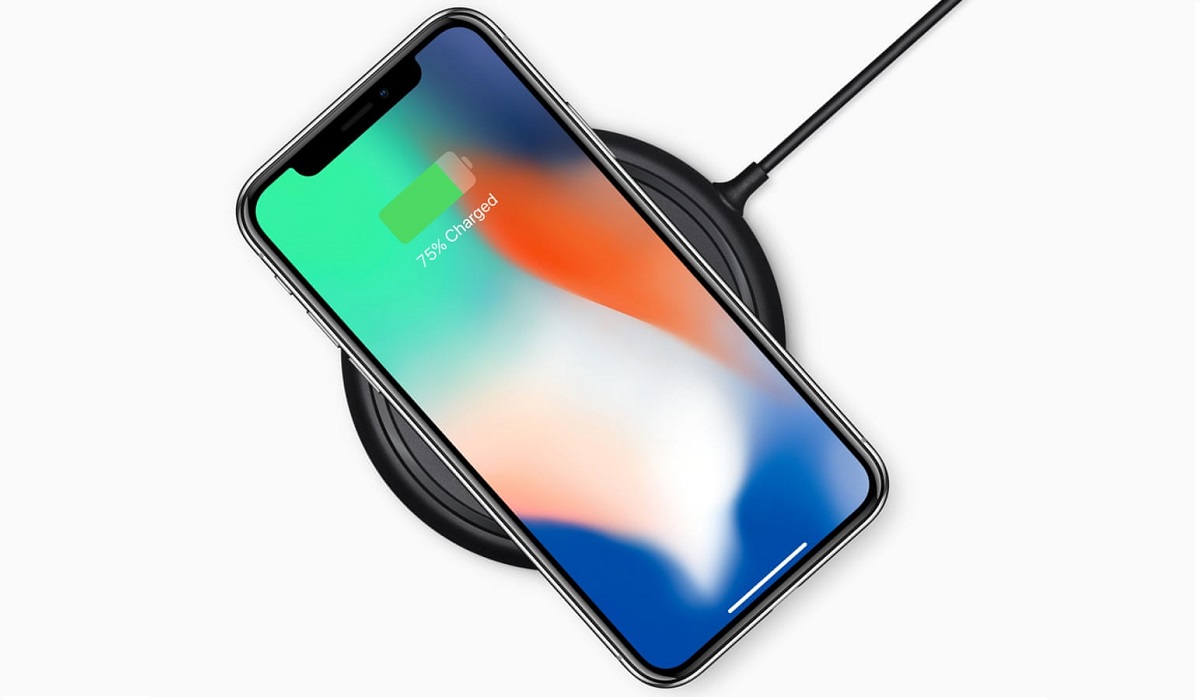
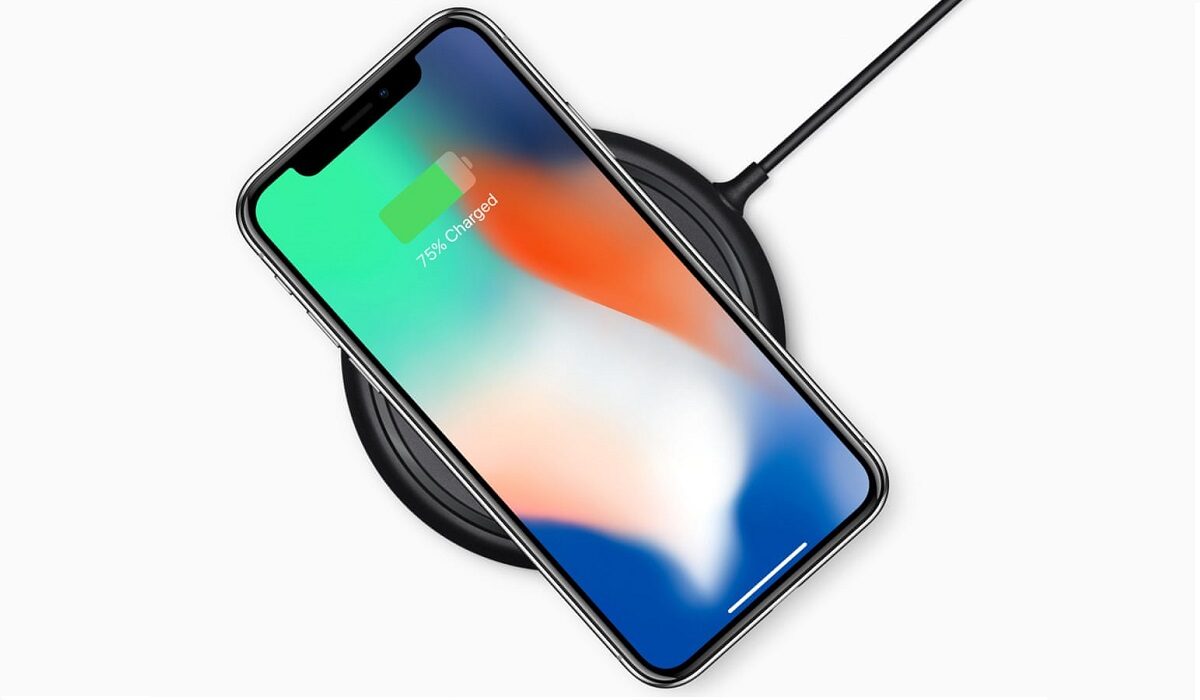
If you’ve been searching for an iPhone wireless charging setting to turn on or off, here’s the short answer: there is no such toggle. Apple doesn’t give you a switch to enable or disable wireless charging on iPhone. You simply place your phone on a compatible charger and it starts charging automatically.
That said, there are several important settings that directly affect how your iPhone charges wirelessly — and if your phone isn’t charging wirelessly at all, there are specific things to check. This guide covers all of it.
The iPhone Settings That Actually Affect Wireless Charging
While there’s no master wireless charging toggle, these are the settings that genuinely matter:
1. Optimized Battery Charging
This is the most important charging-related setting on your iPhone. When enabled, your iPhone learns your daily routine and delays charging past 80% until shortly before you typically unplug it. The goal is to reduce the time your battery spends at 100%, which extends its long-term health.
How to find it: Go to Settings ➡️ Battery ➡️ Battery Health & Charging ➡️ Optimized Battery Charging and make sure it’s toggled on.
If you’ve noticed your iPhone stopping at 80% during wireless charging overnight, this setting is why — and it’s working exactly as intended. It’s not a malfunction.
Important note: If you switch to a new MagSafe or Qi charger, the iPhone needs time to re-learn your routine. It may not optimize charging immediately for the first week or so after changing chargers.
2. Charge Limit (80%)
On iPhone 15 and later running iOS 17 or newer, Apple added a separate Charge Limit option that lets you cap charging at 80% permanently — regardless of time or routine. This is a more aggressive battery preservation setting than Optimized Battery Charging.
How to find it: Go to Settings ➡️ Battery ➡️ Charging and look for the Charge Limit option.
This applies to both wired and wireless charging. If your iPhone consistently stops at 80% and won’t go higher, check whether this setting is turned on.
3. Low Power Mode
Low Power Mode doesn’t disable wireless charging, but it can slow it down. When Low Power Mode is active, the iPhone reduces background activity and can affect how aggressively the battery charges. If your MagSafe or Qi pad seems unusually slow, check whether Low Power Mode is on under Settings ➡️ Battery.
4. MagSafe Battery Pack — Charge Limit Setting
If you use Apple’s MagSafe Battery Pack as a portable charger, it charges your iPhone to 90% by default to protect battery longevity. To override this and charge past 90%, open Control Center, tap Low Power Mode, then tap Charge past 90%.
Which iPhones Support Wireless Charging?
Wireless charging has been available on iPhones since the iPhone 8 in 2017. Here’s what each generation supports:
- iPhone 8, X, XS, XR, 11 series: Qi wireless charging up to 7.5W. No MagSafe support.
- iPhone 12, 13, 14 series: MagSafe up to 15W; standard Qi up to 7.5W.
- iPhone 15 series: MagSafe up to 15W (first-generation MagSafe charger) or higher with the second-generation charger; Qi2 up to 15W.
- iPhone 16 series: MagSafe up to 25W with a second-generation MagSafe charger and a 30W+ adapter; Qi2 up to 15W.
- iPhone 16e: Qi wireless charging up to 7.5W. No MagSafe magnet array.
- iPhone 17 series: MagSafe up to 25W; Qi2 up to 25W with the updated 2025 MagSafe charger.
- iPhone Air: MagSafe up to 20W; Qi2 up to 15W.
Note that to get peak MagSafe speeds on iPhone 16 and later, you need both the second-generation MagSafe charger and a power adapter rated at 30W or higher. Using an older 20W adapter will result in slower charging speeds than the hardware is capable of.
iPhone Won’t Charge Wirelessly? Here’s What to Check
If your iPhone isn’t charging wirelessly at all — or is charging much more slowly than expected \u2014 work through these checks before assuming your charger or phone is broken.
Check 1: Is the charger plugged in before you place the phone?
Apple specifically recommends plugging in your MagSafe charger before placing your iPhone on it. If the phone is placed on the charger before it’s connected to power, it may not recognize the charger or deliver full power. Simply remove the phone, wait three seconds, and place it back.
Check 2: Remove your phone case
Thick cases, cases with metal components, and wallet cases that hold cards can all interfere with wireless charging. Credit cards and RFID security badges placed between the phone and charger can also block charging and may be damaged by the magnets. Remove the case and test again — if it charges without the case, the case is the problem.
Check 3: Clean the back of the phone and charger surface
Dust, lint, or debris between the phone and charging pad can interrupt the connection. Wipe both surfaces with a clean, dry cloth.
Check 4: Check for overheating
If your iPhone gets too warm during wireless charging, it will automatically slow down or pause charging to protect the battery. This is normal protective behavior. Move to a cooler environment, remove any thick case, and avoid using the phone intensively while it charges wirelessly.
Check 5: Restart your iPhone
A software glitch can occasionally prevent wireless charging from working. A simple restart often resolves it. Power the phone off completely, wait 10 seconds, and power it back on before placing it on the charger.
Check 6: Update iOS
Some charging issues have been resolved through iOS updates. Go to Settings ➡️ General ➡️ Software Update and install any available updates.
Check 7: Try a different charger or power adapter
If none of the above works, the issue may be the charger itself or the power adapter you’re using with it. Try a different MagSafe or Qi-certified pad. Also check that your power adapter provides enough wattage — Apple recommends at least 20W for iPhone 15 and earlier, and 30W or higher for iPhone 16 and later with MagSafe.
Check 8: Check for hardware damage
If your iPhone charges normally with a cable but not wirelessly on any charger, the wireless charging coil inside the phone may be damaged. This typically happens after a drop or water exposure. Contact Apple Support or visit an Apple Store for a diagnostic.
MagSafe vs. Qi vs. Qi2: What’s the Difference?
Qi is the universal wireless charging standard supported by essentially all wireless chargers. iPhones charge at up to 7.5W on standard Qi pads.
MagSafe is Apple’s proprietary standard introduced with the iPhone 12. It adds a ring of magnets for precise alignment, enabling faster charging — up to 15W on iPhone 12 models, and up to 25W on iPhone 16 and later with the second-generation charger. MagSafe chargers are backward-compatible with Qi devices, but non-Apple Qi devices only get standard Qi speeds, not MagSafe speeds.
Qi2 is an updated open standard from the Wireless Power Consortium, built on MagSafe’s magnetic alignment technology. Qi2-certified chargers deliver up to 15W on compatible iPhones (iPhone 13 and later) without requiring Apple’s proprietary MagSafe hardware. The updated 2025 Qi2.2 standard raises this to 25W for the iPhone 17 series.
For most users, the practical takeaway is: if you want fast wireless charging on an iPhone 16 or later, use Apple’s second-generation MagSafe charger with a 30W adapter. If you want a more affordable option that still delivers fast wireless charging on iPhone 13, a Qi2-certified pad is a solid alternative.
Where to Buy: Recommended Wireless Chargers for iPhone
Whether you’re replacing a faulty charger or upgrading to faster MagSafe speeds, here are the options worth considering, all available on Amazon:
Apple MagSafe Charger (2nd Generation)
The definitive choice for iPhone 16 and later. Delivers up to 25W with a compatible 30W+ power adapter. Magnetic alignment ensures your phone snaps into position every time. Compatible with all MagSafe and Qi-capable iPhones.
➡️ Apple MagSafe Charger on Amazon
Anker MagSafe-Compatible Wireless Charger
Anker’s MagSafe-compatible chargers are among the most popular third-party options, offering reliable magnetic alignment and Qi2 speeds at a lower price point than Apple’s official charger. A strong choice for iPhone 13, 14, and 15 users.
➡️ Anker MagSafe Charger on Amazon
Belkin 3-in-1 MagSafe Charging Pad
Ideal for users with multiple Apple devices. This charging station handles iPhone via MagSafe, Apple Watch, and AirPods simultaneously from a single pad. A clean solution for a nightstand or desk.
➡️ Belkin 3-in-1 MagSafe Charger on Amazon
Qi-Certified Wireless Charging Pad (Budget Option)
If you have an older iPhone (8 through 11) without MagSafe support, any Qi-certified pad will deliver 7.5W wireless charging. Brands like Yootech and TOZO offer solid, affordable options that work reliably for basic overnight charging.
➡️ Yootech Qi Wireless Charging Pads on Amazon
Apple 30W USB-C Power Adapter
Don’t overlook the power adapter. Getting peak MagSafe speeds on iPhone 16 and later requires a 30W or higher USB-C adapter. If you’re using an older 5W or 12W brick, you’re leaving charging speed on the table.
➡️ Apple 30W USB-C Power Adapter on Amazon
Final Word
There’s no dedicated iPhone wireless charging setting to hunt for — wireless charging works automatically when the phone is placed on a compatible pad. The settings that matter are Optimized Battery Charging and Charge Limit, both found under Settings & Battery, and both designed to protect your battery’s long-term health rather than control whether wireless charging works at all.
If your wireless charging isn’t working, the fix is almost always one of the basics: plug in the charger first, remove a thick or metal case, clean the surfaces, or try a different charger. Hardware failure is rare and is usually the last thing to consider, not the first.
Disclosure: MobilityArena may earn a commission from qualifying purchases made through links in this article, at no extra cost to you.
Disclosure: When you purchase through links on our site, we may earn an affiliate commission.