

In this post, we’ll compare some of the best Slack poll apps on the market, starting off with our tool, Geekbot, and explain how we approached certain design and feature decisions around running polls in Slack.

In this section, we’ll guide you through how to create polls in Slack using Geekbot, and useful advice for using our tool most effectively.
However, before diving into this, we’d like to note that teams can also use Geekbot for running asynchronous, in-Slack…
- Surveys.
- Standups.
- Retrospectives.
- Product changelog updates.
- Meeting notes.
- New feature proposals.
- And other types of remote work check-ins.
If you’re curious, we dive into these features in greater depth in these articles:
With that out of the way, let’s get to Geekbot’s Slack poll feature and how it works.
Set Up Process
To create a poll in Slack, enter Geekbot dashboard or simply send /geekpoll as a direct message to Geekbot.
Here you can either choose from one of our pre-made polls such a “Yes/No” poll or “Team Feedback Weekly” poll, or start a new one from scratch.
The difference in the process of creating a custom poll or a poll from a pre-made template is that a pre-made template comes with some pre-filled fields, yet you still are free to edit it to your needs.
The first tab you’ll see when creating a new poll is “Questions”:

Here you can add as many questions as you want for your poll, and choose the type of answers each question can accept.
Geekbot supports simple answers, numeric-only answers, scale-based answers (form 1 to 5, or from 0 to 10).
The scale-types responses will be automatically presented as viual graphs.
Click “Next” when you are finished customizing questions for your poll.
The next tab you will see is “Audience:

On this tab, we wil lchoose who will particiapte in our poll. You can either send the poll to individual users by their @, or send poll to an entire channel.
You can also edit and replace a welcome message. The participants will see this message when the bot notifies them the about poll.
Next tab is “Schedule”:

Use this tab to determine the days, frequency, and exact time that the poll questions get sent out.
The last tab is “Results“. Here you can control the visibiliy of your poll (whether everyone sees resuls or only you) and here you can make the poll anonymous.
Post Set Up
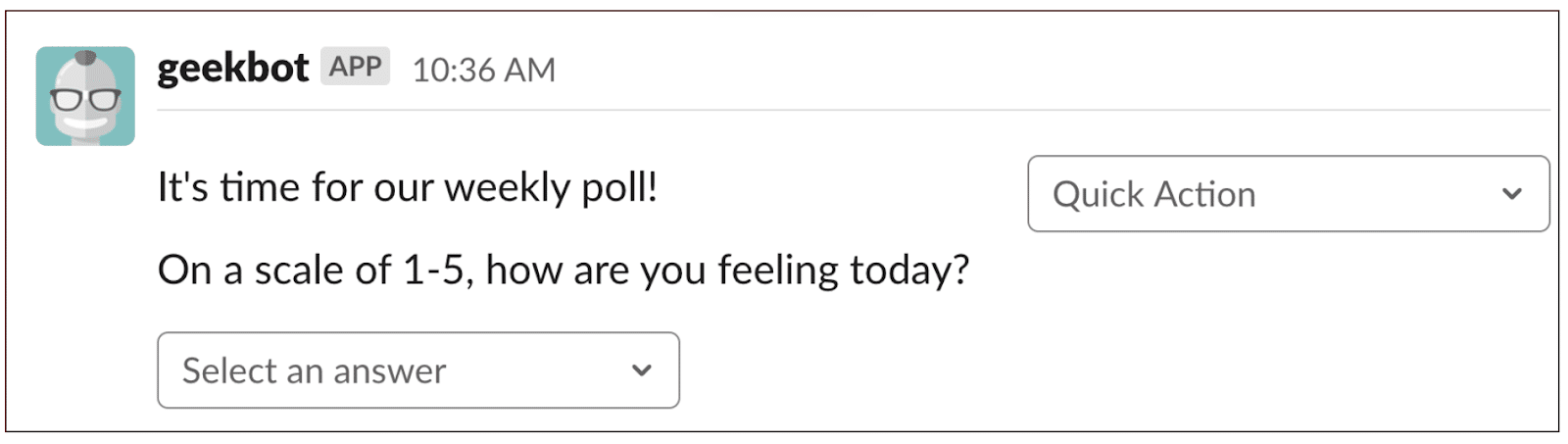
Once the setup is complete, Geekbot sends a Slack DM with the poll question to each participant at the day(s) and time(s) you set:
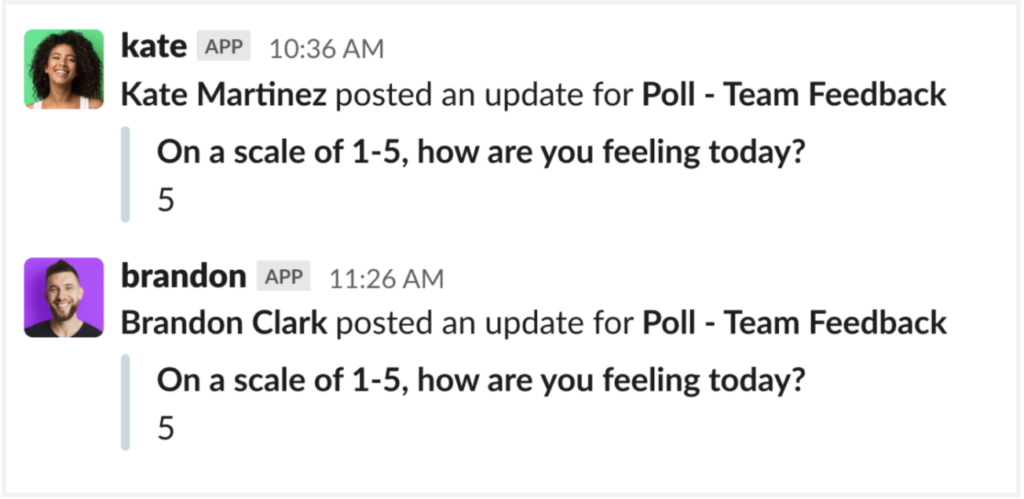
Then, everyone’s answers are posted in the designated Slack channel:
While all the poll answers are saved in the Slack channel you designate, you can also access past answers via Geekbot’s dashboard, filter results by date, and view analytics such as participation percentage, report streak, and more!
Poll results can be viewed in real time, after a user votes, or after poll completion, depending on each poll settings. Detailed analytics and results are accessible in the Admin Dashboard, featuring data visualizations such as charts and graphs. Results can also be exported in CSV, PDF, or JPEG formats for further analysis.


Reminder Feature
If a team member is mid-task and would like to answer the Slack poll question at a later date, they can configure Geekbot to send them reminder notifications every few hours. This significantly impacts response rates, and in speaking to customers, it’s a significant reason why they use Geekbot.
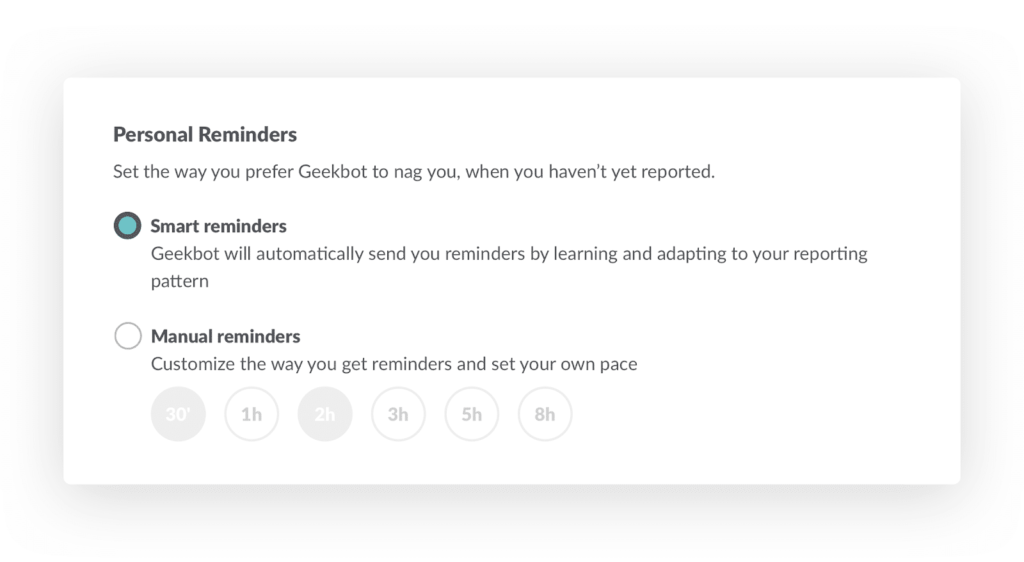
With that being said, the reminder feature is completely optional, as to not be intrusive to those who don’t wish to receive follow up notifications.
Summary of Geekbot Poll Features:
- Fully automated (gathering, analysing, publishing results)
- Fully customizable (questions, schedule, participants)
- Visualization of results (graphs, real-time dashboard)
- Can be made anonymous
- Every poll can be saved as a template basis for future polls
How Else Can Geekbot Help Your Team?
As we mentioned earlier, while Geekbot lets teams run polls in Slack, this is just one part of the tool, and you can also use it for asynchronous standups, retrospectives, and other remote work check-ins in Slack.
We touch on Geekbot’s other features in these articles:
In addition, see the following customer success stories for more information:
Finally, you can find Geekbot’s reviews on Capterra, Crozdesk, G2, and Trustpilot.
While Polly lets teams run polls in Slack, it can also help with:
- Automated employee onboarding workflow.
- Measuring the health of your IT Help Desk.
- Standup meetings.
- And much more!
For a comparative analysis between Geekbot and Polly, check the ‘Geekbot Vs. Polly: Which Slack poll and survey tool is best for your team‘ guide!
For more info on how to use Polly specifically to run Slack polls, click here and/or see the video below:
While Simple Poll is a polling app that doesn’t offer as many features as tools like Geekbot or Polly, if your team is solely interested in running polls in Slack, it does a solid job at it.
To learn more about how Simple Poll works, click here.
Frequently asked questions
How do I create a poll in slack app?
The simplest way to create a poll in Slack is by using Slack emojis. If your poll has three options to choose from, add an emoji to every option and ask people in Slack to react to your message with an emoji that corresponds to their choice. If you want extra functions such as anonymous polls, templates, event-triggered polls, and reminders, use specific polling bots available to you in the Slack App Directory.
Can you do polls on slack?
Yes, you can do polls on Slack. You can run polls directly in Slack either by using Slack built-in emojis or by adding polling apps such as Geekbot, Polly, Simple Poll from the Slack App directory.
How do I create a survey in slack?
To create a survey in Slack, use specific Slack Survey Bots that you can find in the Slack App Directory. Survey slack bots allow you to create surveys easily, track responses, and even apply NLP-analysis in more advanced survey slack apps such as Geekbot.