

Disclosure: When you purchase through links on our site, we may earn an affiliate commission.
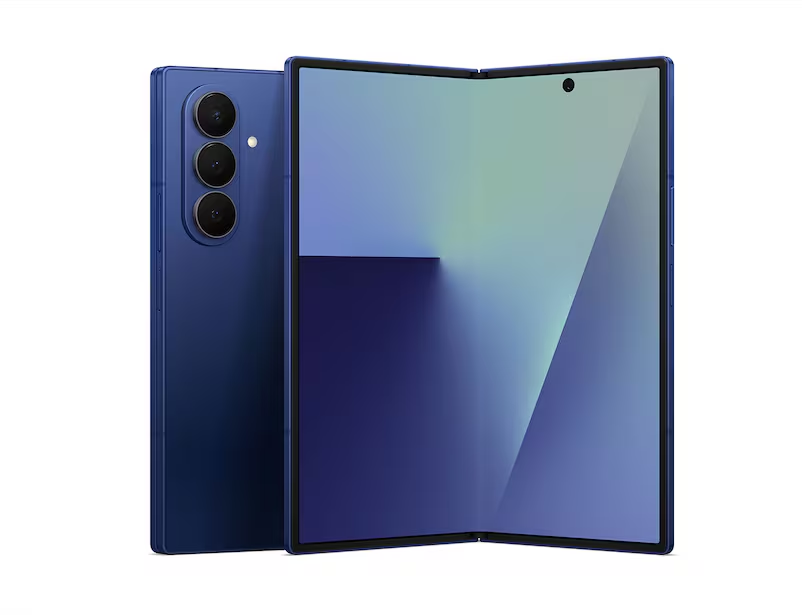
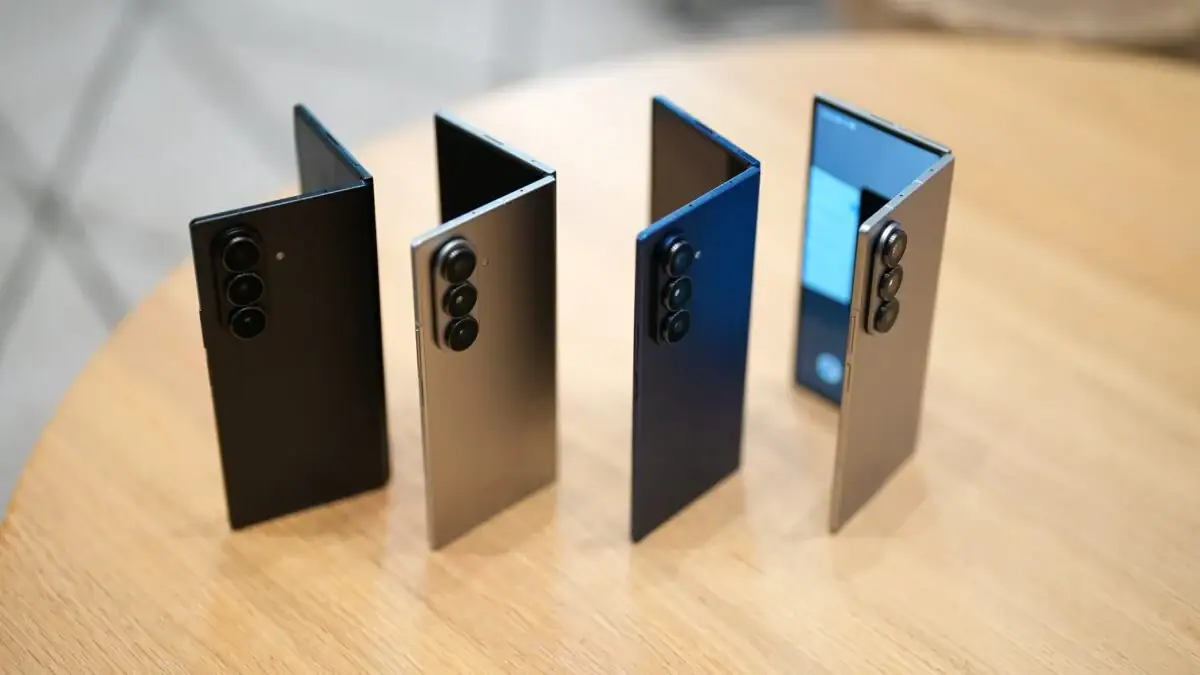
The Samsung Galaxy Z Fold 7’s huge 7.6-inch foldable display is stunning, but let’s be real — trying to handle it one-handed can feel like you’re arm wrestling an octopus. Thankfully, Samsung has made life easier with smart tools built right in. With features like Gesture Navigation and one-handed mode, you don’t have to worry about clumsy swipes or awkward finger stretches.
Once you get the hang of Gesture Navigation, moving around your Fold feels effortless — whether you’re jumping between apps, pulling down quick settings, or swiping back home. Master these simple tricks, and you’ll be gliding through your screen like a pro — no finger cramps, no frustration, just smooth, confident swiping.
Why Gesture Navigation Rules on the Fold 7
Gone are the days of hunting for tiny buttons at the bottom of your screen. Gesture navigation offers intuitive swipes and flicks that free up your screen real estate and make every interaction smoother, especially on a big foldable canvas where buttons can feel like obstacles during one-handed use.
Step 1: Enable Gesture Navigation
- Open the Settings app on your Fold 7.
- Scroll to Display → Navigation bar.
- Choose Swipe gestures to replace the classic three-button navigation.
- Customize gesture sensitivity from low to high to find the sweet spot — higher if you’re using a case or want zippier response; lower if you accidentally trigger gestures too often.
- Bonus: Samsung lets you block gestures while using the S Pen to avoid accidental inputs while drawing or writing.
Now, to get around:
- Swipe up from the bottom center to go Home.
- Swipe up and hold to view recent apps.
- Swipe inward from the left or right edge to go Back.
Step 2: Activate One-Handed Mode for Easier Reach
- Head to Settings → Advanced features → One-handed mode.
- Toggle it ON, then choose your preferred activation method:
- Gesture: Swipe diagonally from bottom corners.
- Button: Triple tap the home button or swipe down on the navigation bar.
- Once activated, the entire screen content shrinks and shifts down towards your thumb, perfect for one-handed use on that expansive display.
- Use it to launch quick tasks, reply to messages, or browse without doing thumb gymnastics.
Making Gestures and One-Handed Mode Work Together
- Assign your most-used apps and controls to gesture shortcuts with Samsung’s Good Lock – One Hand Operation+ module for ultra-customizable swipes.
- Use one-handed mode when holding the Fold 7 unfolded in cramped places like buses or cafes.
- Combine gestures with one-handed mode to navigate faster and more fluidly without fumbling.
- You can customize gesture areas and sensitivity for left or right hand dominance.
Why You Will Love This
- Keeps the gorgeous large display usable and friendly for single-handed operation.
- Declutters the screen and offers fluid, natural navigation.
- Supports sophisticated workflows with folds and unfolds, keeping control consistent on both cover and main displays.
- Makes you look effortlessly smooth and in control — because who doesn’t want to be a gesture master?
Conclusion
Gesture Navigation makes the Galaxy Z Fold 7 feel effortless to use, even with its big display. With one-handed mode alongside Gesture Navigation, you can move around your phone quickly, comfortably, and without breaking your flow.
At home, at work, or on the go, Gesture Navigation keeps everything within reach — so you can enjoy the power of a large screen without losing the ease of a smaller one.