
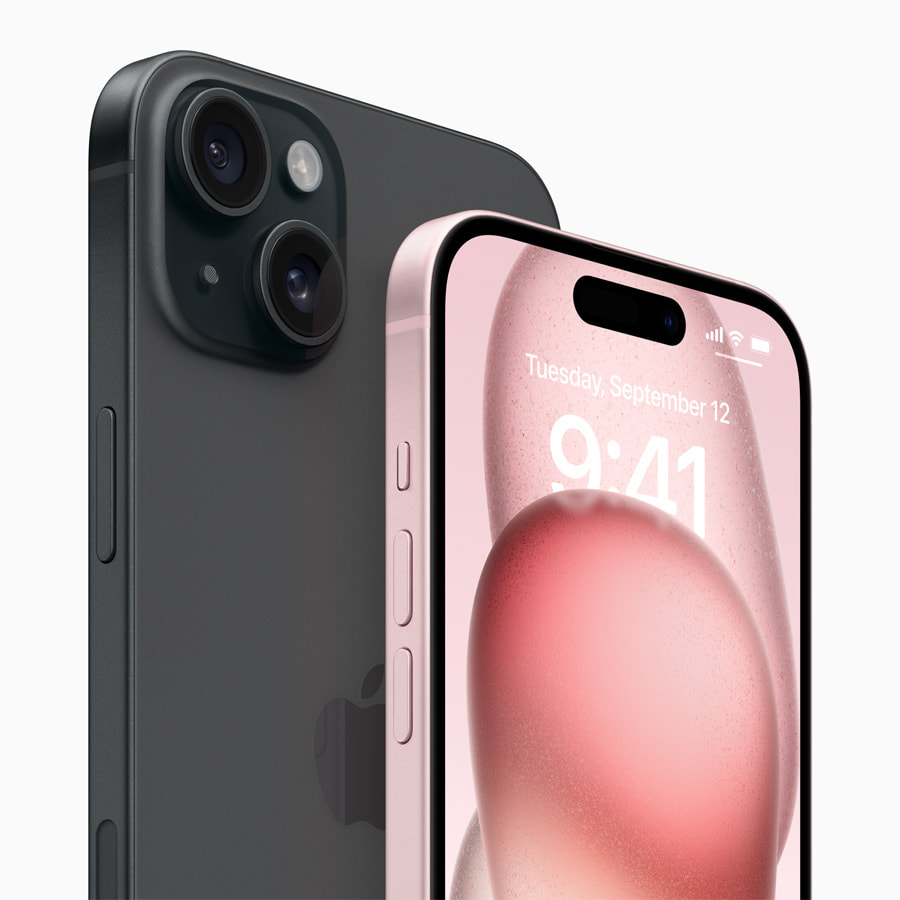
If your iPhone screen keeps lighting up every time you pick it up or shift it on a desk, Raise to Wake is the feature doing that. It is convenient in theory, but for a lot of people it becomes more of a nuisance than a help. It drains battery, triggers accidental taps on the lock screen, and can even pocket-dial or unlock your phone in unintended situations. The good news is that turning it off takes about five seconds.
Here is exactly how to do it.
What Is Raise to Wake?
Raise to Wake is an iPhone feature that wakes the screen automatically when the motion sensor detects you lifting the phone. Apple introduced it with iPhone 6s, and it has been on by default ever since. The idea is to let you glance at notifications without pressing any buttons.
The problem is that the motion sensor is not always accurate about intent. Picking up your phone to move it, turning over in bed with your phone on the nightstand, or sliding it off a table can all trigger the screen. If you have a passcode or Face ID set up, a stray tap on a woken screen can also cause unintended actions.

How to Turn Off Raise to Wake on iPhone
- Open the Settings app on your iPhone.
- Scroll down and tap Display & Brightness.
- Find the Raise to Wake toggle.
- Tap the toggle to turn it off. When it is gray, it is off.
That is all there is to it. Your screen will no longer wake just from picking up the phone. To wake it, you will need to press the side button or tap the screen.
This setting is available on iPhone 6s and later running iOS 10 or newer, which covers virtually every iPhone in use today.
Should You Turn It Off?
There is no universal right answer here, but here are the situations where turning off Raise to Wake makes sense:
- Battery life matters to you. Every time the screen wakes unnecessarily, it pulls power. Turning this off is a small but real battery saver, especially if you pick up your phone frequently throughout the day.
- You want to prevent accidental access. If your phone is in a bag, pocket, or backpack, Raise to Wake can trigger the screen and in some cases interact with the lock screen through unintended touch inputs.
- You use Always-On Display alternatives. If you are on an iPhone 14 Pro, 15 Pro, or 16 Pro (or their Max counterparts), which have the Always-On Display feature, Raise to Wake becomes largely redundant anyway since you can see the time and notifications without waking the screen.
- You find it annoying. Completely valid reason. Not every Apple default belongs in your workflow.
What Changes After Turning It Off
Once Raise to Wake is off, your iPhone screen stays dark when you pick it up. You wake the screen manually by pressing the side button (right side on Face ID iPhones) or tapping the screen once. Notifications still come in and make sounds or vibrate as normal. Nothing changes about how apps work or how Face ID functions, it just removes that one automatic trigger.
If you miss it, flipping the toggle back on in Display & Brightness takes the same five seconds.
One More Tip
While you are in Display & Brightness, it is worth checking the Auto-Lock setting just below. This controls how quickly your screen turns off when you are not using it. If you want your phone to lock faster after you set it down, dropping Auto-Lock to 30 seconds pairs well with disabling Raise to Wake.
Small settings changes like these add up. Your iPhone behaves exactly how you set it up to behave, and Raise to Wake being on by default does not mean it has to stay that way.
Disclosure: When you purchase through links on our site, we may earn an affiliate commission.